
Browse by Popular
Domain Name
- What is a domain name?Eligibility criteria for registering .AU domain namesPremium domain names explained
Web Hosting
View All
Email Hosting
- Outlook 365 (Classic) Email Setup GuideMail app setup for iOS (iPhone + iPad)Gmail (webmail) email setup
Google Workspace
- Getting Started with Google WorkspaceGoogle Workspace support resourcesTransferring an existing Google Workspace service to VentraIP
Account
- How do I reset my VIPcontrol password?How do I create a VentraIP account?How can I see who accessed my VentraIP account?

Troubleshooting
- How do I clear my browser cache?Troubleshooting a ‘500 internal server' errorTroubleshooting with a ping test
Connecting or Creating your Google Business Profile with rippaMarketing
This article will cover creating an SEO-friendly Google Business Profile with rippaMarketing.
Having a Google Business Profile is considered essential for a business to be on if they want to increase their presence online. Since Google is the most used search engine, having your business listed in their directory is crucial to your online success.
Creating/updating your Business Profile Page
If you don’t have a Business Profile yet, you can create it within your rippaMarketing Dashboard to be used with your Google Business Profile:
- Log into VIPcontrol
- Click on ‘My Services’ → ‘Marketing’ → ‘Dashboard’ next to your rippaMarketing service.
- Once logged in, Click on ‘Online Presence’ → ‘Business Profile’
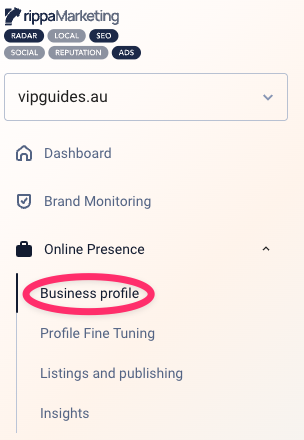
- You will be prompted to fill out some information about your business:
Essential Business Information
- Business Name: Make sure the name is exactly as it appears on your website, legal documents, and marketing materials. Your business name should always be the same across all online platforms, including your Google Business Profile, social media, and online directories.
- Website: Your website URL helps customers find your business and allows Google to connect your profile with your website. This should be automatically setup, if not, use your official domain name (e.g., vipguides.au) and avoid redirect links or tracking URLs.
- Email & Phone Number: These details are critical for customer communication and are mandatory for synchronization with online directories. Use a professional business email (e.g., contact@vipguides.au) and ensure your phone number is identical across all platforms, as it serves as a trust signal for Google.
- Address & Business type: Select your business type, whether you have a physical location or not. If your business has a physical address, adding a complete and accurate address helps customers locate your business and improves your chances of ranking in local searches.
Opening Hours
Ensure that your opening hours are set and accurate as this is crucial for customer convenience and will let them know when they can reach you, whether it’s by phone, in person, or online. You’re also able to specify 24/7 availability for online shops, or add notes such as “The shop is open 24/7, but our support team is available between 9am and 5pm”.
Business Description
Your business description is your opportunity to tell your story and connect with potential customers. Use relevant keywords and write a concise, engaging description that highlights your unique selling points, products, and services. Make it informative and compelling to encourage customers to learn more about your business.
We would advise to keep it customer centric. Instead of “We are the best electricians on the Gold Coast.”, say “We provide reliable and quality electrician solutions for homeowners and businesses on the Gold Coast.”.
Images and Logo
Visuals are essential to building brand recognition and creating a positive first impression. Upload a high-quality main photo, your logo, and at least 3-5 additional images that showcase your products, services, team, or location. Make sure your images are professional and visually appealing to make your business more attractive and personable.
Once you have created your profile, make sure your infomation is correct as this is what customers will be seeing. Fully completed profiles with business name, address, phone number, website, and photos are more likely to get higher rankings and be visible in the top 3 with Google Maps and search results.
Linking or creating your Google Business Profile
You can now link or create your Google Business Profile, to do this, click on ‘Complete business profile’ on the ‘Online Presence’ → ‘Business Profile’. You will be prompted to create a business profile, or connect an existing Google Business Profile if you already have one.
You will then be guided through the Google Business profile initial setup and be prompted to link your rippaMarketing account to your Google Business Profile.
Once you get the pin code to your email address and verify your business in the rippaMarketing app, you will be able to sync your account and fully manage it. You will be able to update working hours if you change them, create events, respond to reviews and add new photos all within rippaMarketing!