
Browse by Popular

Domain Name
- What is a domain name?Eligibility criteria for registering .AU domain namesPremium domain names explained

Web Hosting
View All
Email Hosting
- Outlook 365 (Classic) Email Setup GuideMail app setup for iOS (iPhone + iPad)Gmail (webmail) email setup

Google Workspace
- Getting Started with Google WorkspaceGoogle Workspace support resourcesTransferring an existing Google Workspace service to VentraIP
Account
- How do I reset my VIPcontrol password?How do I create a VentraIP account?How can I see who accessed my VentraIP account?

Troubleshooting
- How do I clear my browser cache?Troubleshooting a ‘500 internal server' errorTroubleshooting with a ping test
Editing & Syncing your Google Business Profile in rippaMarketing
With any rippaMarketing plan, you’re able to manage your Google Business Profile all within the rippaMarketing dashboard.
Note: To do this, you will need to connect your Google Business Profile to rippaMarketing, please follow this guide here if you haven’t already.
Editing your Business Profile
To make edits to your Business Profile you can follow these steps:
- Login to VIPcontrol
- Navigate to ‘My Services’ → ‘Marketing’.
- Click on the ‘Dashboard’ button next to your service.
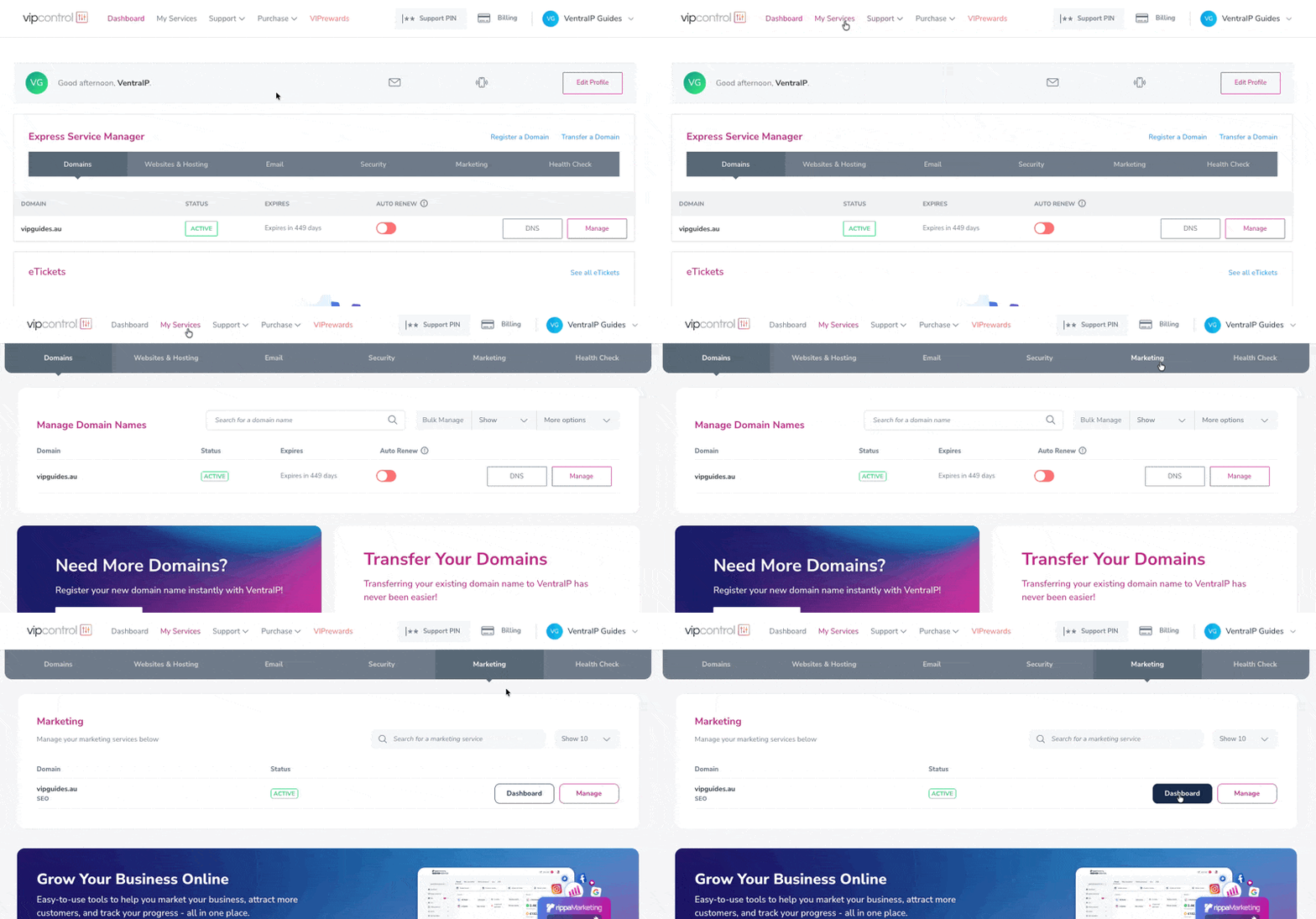
- Click on ‘Online Presence’ → ‘Business Profile’. From there you can edit any of the sections such as:
- Business Details & Type
- Business phone number
- Service areas
- Opening times
- Business categories
- Short and long descriptions
- Photos & Social Media links
Syncing & Publishing
To sync the changes that you’ve made to your business profile, navigate to ‘Online Presence’ → ‘Listings and Publishing’ → Then, choose the option to publish or republish if you have made the updates to existing listings.
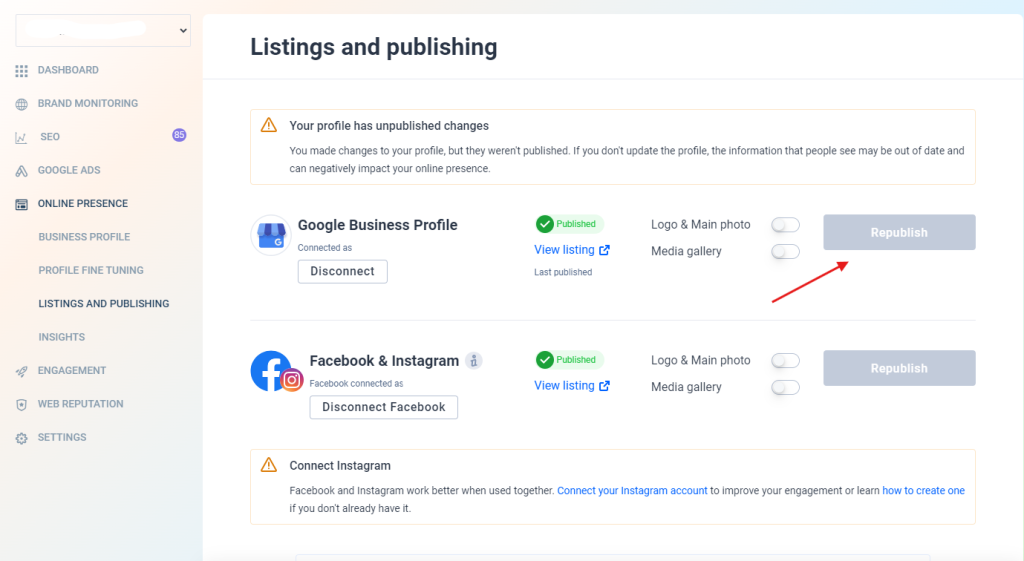 Every time you make changes to your account (such as changing working hours for example), you will be asked to sync the changes. Unless your business profile is synced, new data will not be sent from rippaMarketing to Google Business Profile, or any other connected directories.