
Browse by Popular

Domain Name
- What is a domain name?Eligibility criteria for registering .AU domain namesPremium domain names explained

Web Hosting
View All
Email Hosting
View All
Google Workspace
- Getting Started with Google WorkspaceGoogle Workspace support resourcesTransferring an existing Google Workspace service to VentraIP
Account
- How do I reset my VIPcontrol password?How do I create a VentraIP account?How can I see who accessed my VentraIP account?

Troubleshooting
- How do I clear my browser cache?Troubleshooting a ‘500 internal server' errorTroubleshooting with a ping test
Installing Composer in cPanel
Starting with cPanel version 130 cPanel no longer ships PHP Composer by default. Heres how to install Composer manually should your project need it.
Installation
The following steps requires you to be in your cPanel accounts shell.
To do this, you can either use cPanels in built Terminal or SSH into your hosting.
Once you are in the Terminal, run the following commands to install composer:
cd ~
mkdir bin
mkdir bin/composer
curl -sS https://getcomposer.org/installer | php
mv composer.phar bin/composer
echo 'alias composer="/usr/local/bin/php ~/bin/composer/composer.phar"' >> ~/.bashrc
source ~/.bashrc
composer --version
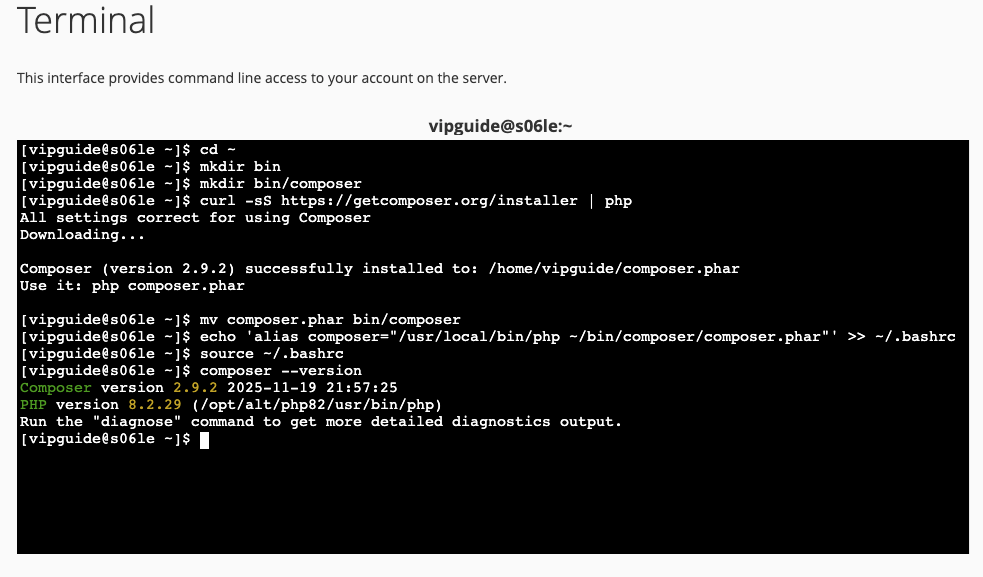
This will create the folders ‘bin/composer’, downloads and runs the installer, moves composer into ‘bin/composer’ directory and finally, adds an alias for composer so you can execute it as a command anywhere.
For more information about composer and using it, you can refer to their official site below:
This guide is an advanced tutorial so if you require assistance with any of the steps above, feel free to contact our Technical Support team and we will be happy to help!