
Browse by Popular

Domain Name
- What is a domain name?Eligibility criteria for registering .AU domain namesPremium domain names explained

Web Hosting
View All
Email Hosting
- Outlook 365 (Classic) Email Setup GuideMail app setup for iOS (iPhone + iPad)Gmail (webmail) email setup

Google Workspace
- Getting Started with Google WorkspaceGoogle Workspace support resourcesTransferring an existing Google Workspace service to VentraIP

Account
- How do I reset my VIPcontrol password?How do I create a VentraIP account?How can I see who accessed my VentraIP account?

Troubleshooting
- How do I clear my browser cache?Troubleshooting a ‘500 internal server' errorTroubleshooting with a ping test
Managing Your VIPsites Media Library
This guide will cover adding, removing, and editing the metadata for your media content within VIPsites using the Media Library tool.
Accessing the Media Library
- Navigate to the Website Editor
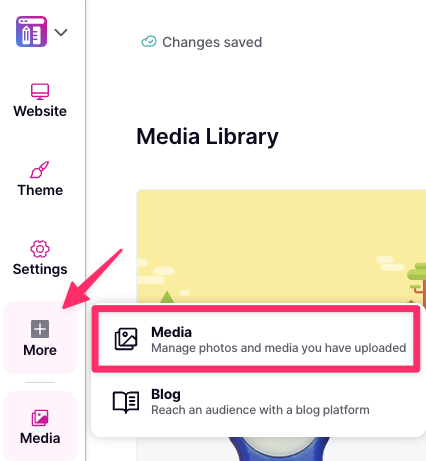
- Click on the ‘More’ button on the left pane → ‘Media’.
Uploading media
When editing any VIPsite website(s) in your account and upload any media to a section or element, they will appear in your Media library.
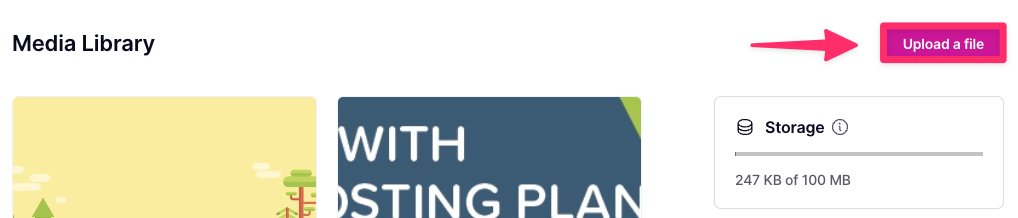
You can also upload media directly by clicking the “Upload a file” button on the top right and either dragging and dropping the file or choosing the file to upload.
 Once uploaded, you can pull any image from your library into any page or section without having to re-upload it every time!
Adding Tags and Alternative (alt) Text
To add Tags and/or Alt Text to an image. Within the Media library:
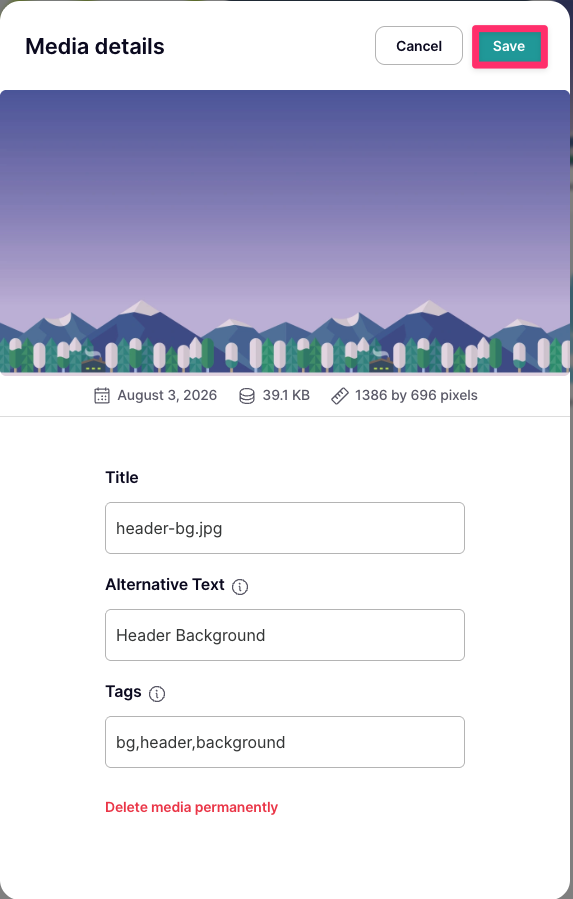
- Click on an image you would like to add the Alternative text/Tags to.
- A pop up window will appear, enter in the desired Alternative text or Tags. If you’re adding multiple tags, ensure they’re seperated by commas.
- Click ‘Save’.
Removing Media
To remove an image or media:
- Click on the media that you would like to remove.
- Click ‘Delete media permanently’
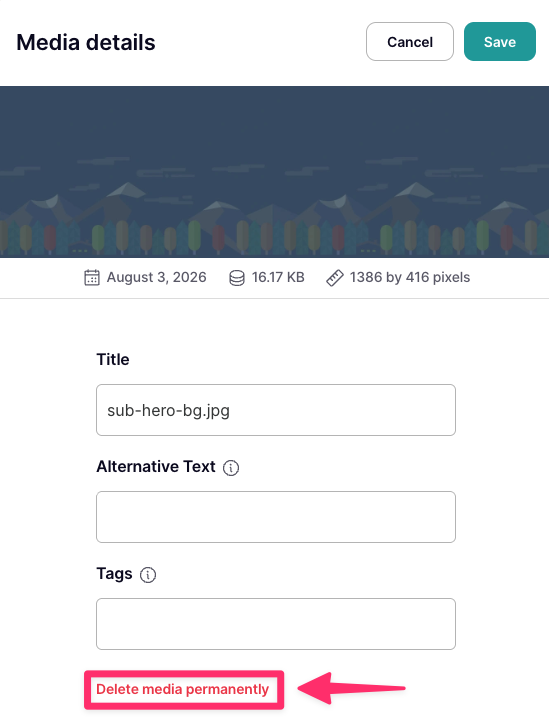
- A confirmation box will appear if its used within any of your websites. Click ‘Delete media’.
Storage
You’re able to store up to 100MB of media and is shared across all your VIPsites websites. Your storage usage is displayed up on the top right:
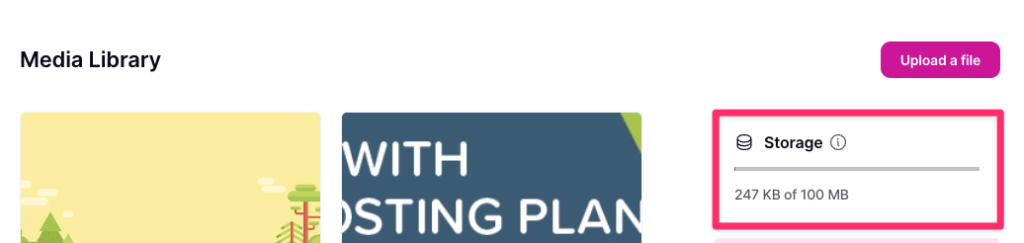 If you run out of space, you would have to remove unused media or consider converting high resolution images to more space efficient formats like WebP. At this time, you are not able to add more storage.