


Support Centre
Find the answers to your questions and get the support you need with the VentraIP help centre.
Browse by Popular
Domain Name
- What is a domain name?Eligibility criteria for registering .AU domain namesPremium domain names explained

Web Hosting
View All
Email Hosting
- Outlook 365 (Classic) Email Setup GuideMail app setup for iOS (iPhone + iPad)Gmail (webmail) email setup

Google Workspace
- Getting Started with Google WorkspaceGoogle Workspace support resourcesTransferring an existing Google Workspace service to VentraIP
Account
- How do I reset my VIPcontrol password?How do I create a VentraIP account?How can I see who accessed my VentraIP account?

Troubleshooting
- How do I clear my browser cache?Troubleshooting a ‘500 internal server' errorTroubleshooting with a ping test
Setting Up Email Hosting on Apple Devices Using a Configuration File
You can use a configuration file to quickly set up one or more Email Hosting accounts on your Mac, iPhone or iPad. This is ideal for users configuring Apple Mail.
This is ideal for users configuring Apple Mail.
Downloading the configuration file
To get your configuration file for your Email Hosting, follow these steps:
- Log in to your VIPcontrol account.
- Head to ‘My Services’ → ‘Email’ → Email Hosting and click ‘Manage’ next to your domain name.
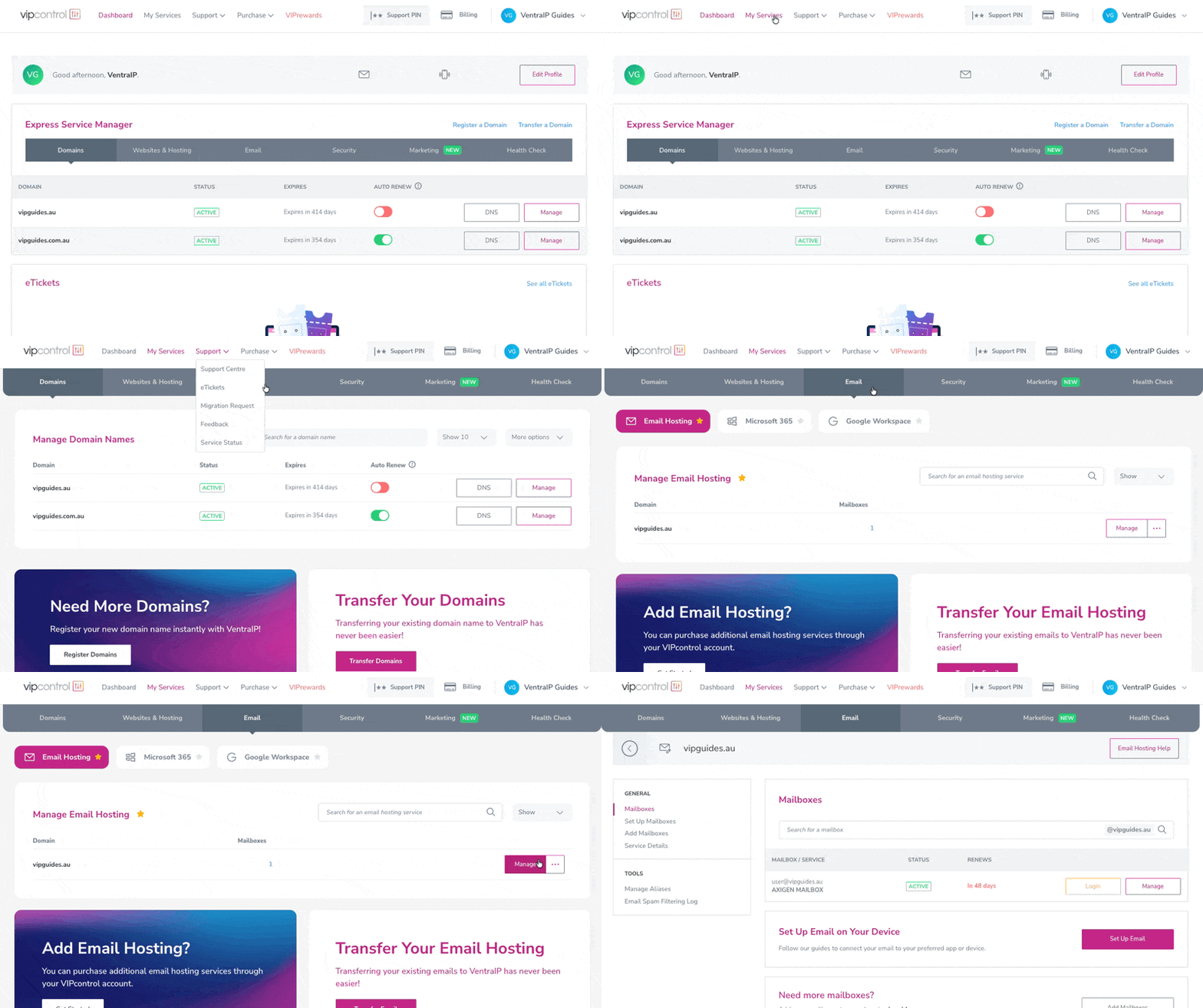
- Click the ‘Set Up Email’ button
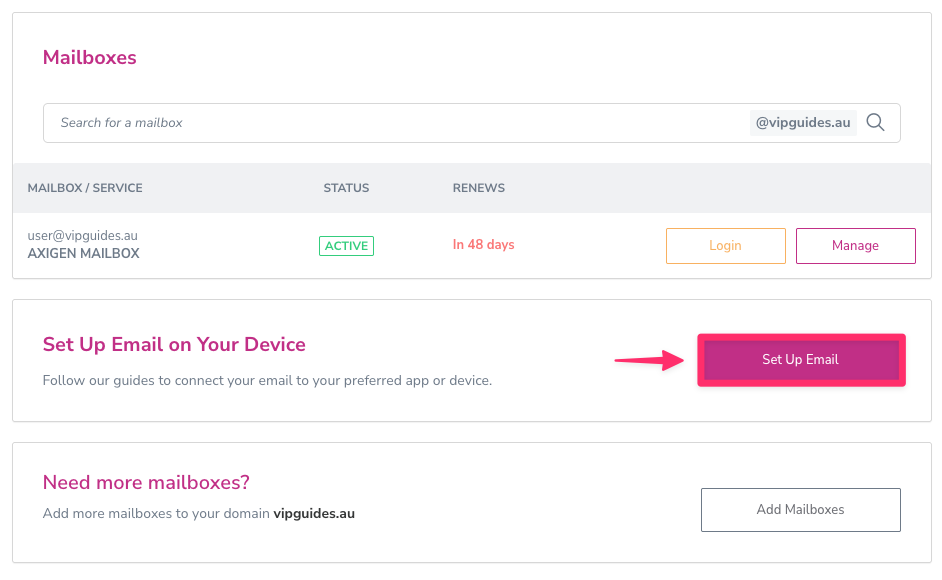
- Go through the setup flow and select to download the file or choose how to send it to your device. The custom configuration file needs to be used on the device you want to set up, so use one of the following methods to send it there:
- Download it via your browser
- Email it to yourself
- Send it via SMS
- Scan a QR code
Installing the configuration file
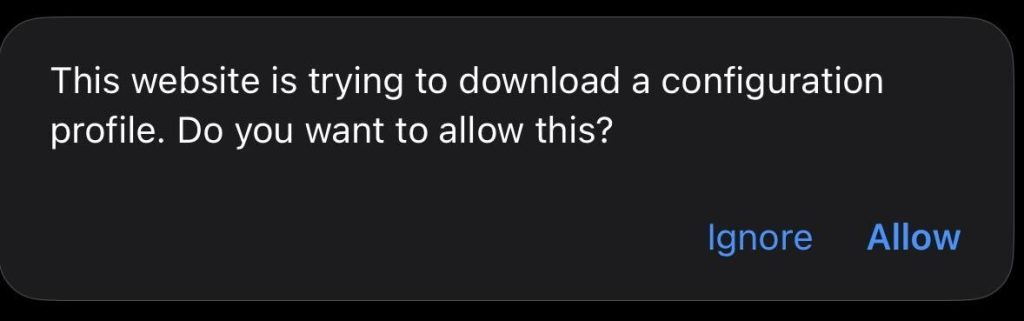
- On the device you are setting up your emails on, tap on the downloaded configuration file (labelled as “Profile”) or if using the QR code, you will be prompted to download the profile.
- Tap Allow when prompted to download the profile.
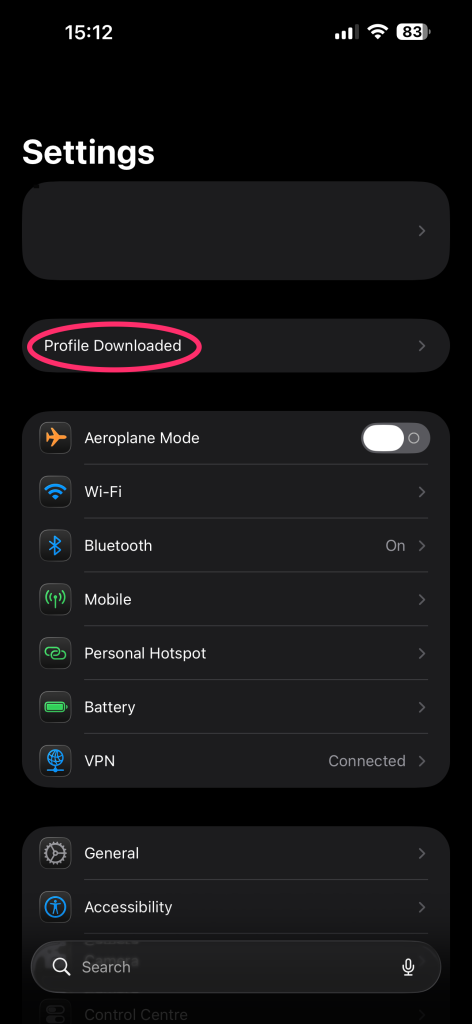
- Open Settings, then tap Profile Downloaded at the top. If you don’t see that option on the top, search ‘Profile’ in your settings
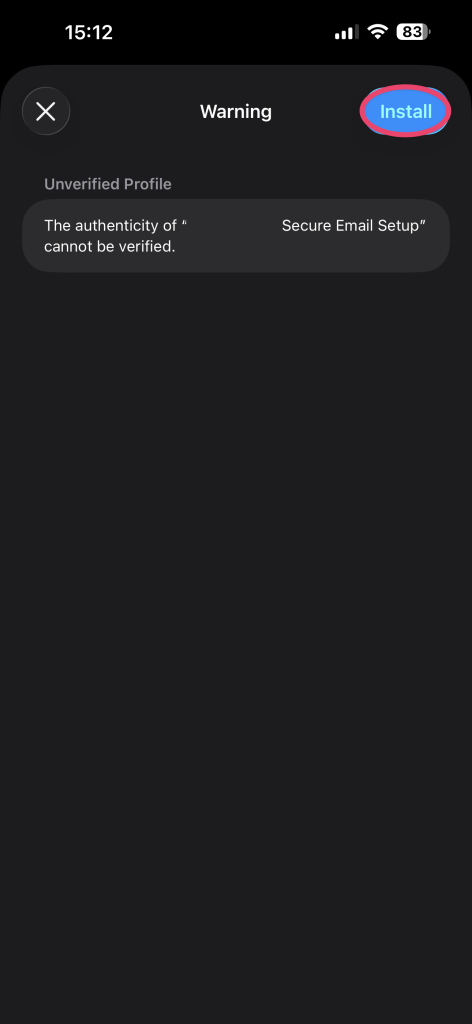
- Tap Install
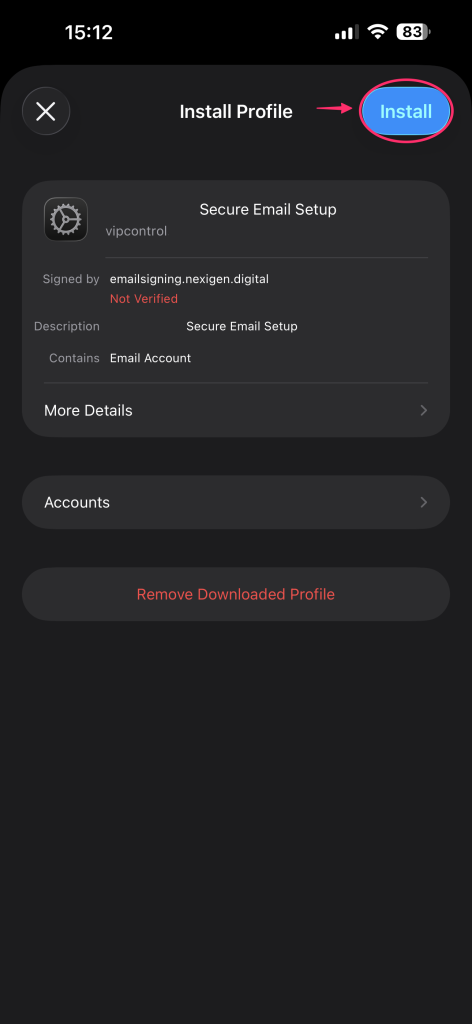
Note: You may come up with an error saying “Not verified.” You can safely proceed and click Install again.
- Enter your phone passcode if prompted.
- Tap Install again to confirm.
- Done! Open the Mail app to start using your email.
Removing the configuration file
To remove the file or profile, navigate to Settings → General → VPN & Device Management → and tap on the configuration profile and click on Remove Profile if required.

We Are Here to Help You
Get in touch with one of our local experts at any time.