
Browse by Popular

Domain Name
- What is a domain name?Eligibility criteria for registering .AU domain namesPremium domain names explained

Web Hosting
View All
Email Hosting
- Outlook 365 (Classic) Email Setup GuideMail app setup for iOS (iPhone + iPad)Gmail (webmail) email setup

Google Workspace
- Getting Started with Google WorkspaceGoogle Workspace support resourcesTransferring an existing Google Workspace service to VentraIP

Account
- How do I reset my VIPcontrol password?How do I create a VentraIP account?How can I see who accessed my VentraIP account?

Troubleshooting
- How do I clear my browser cache?Troubleshooting a ‘500 internal server' errorTroubleshooting with a ping test
Adding a Domain Name to Microsoft 365
This guide will go over adding a domain name to a Microsoft 365 service and setting it up for Exchange!
Step one: Adding & verifying your domain
We will add your domain name and configure the DNS records required by Microsoft 365 services so you can send and receive emails under that domain name!
- Log into the Microsoft admin center if you are not already signed in.
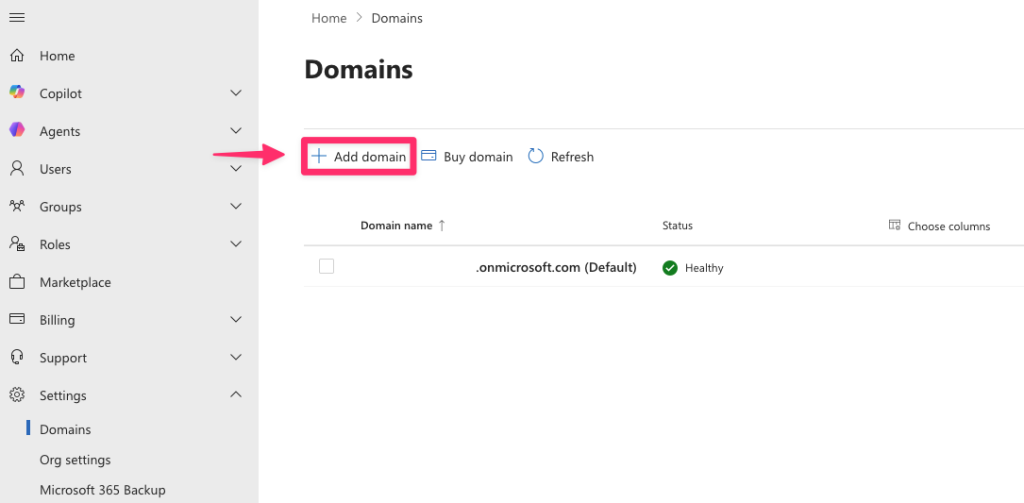
- On the left navigation pane, click on ‘Show all’ → ‘Settings’ → ‘Domains’.

- Click on the ‘Add domain’ button at the top.
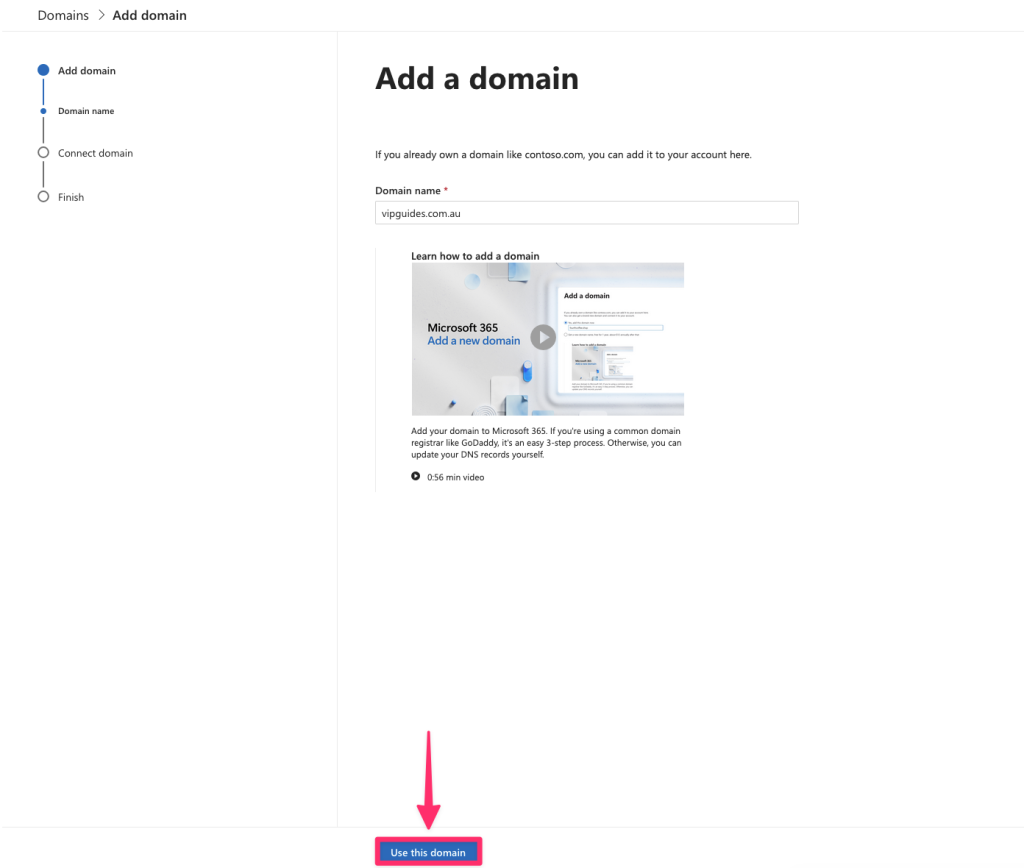
- Next, enter the domain name that you would like to use and click on ‘Use this domain’. We’re going to be using vipguides.com.au in this example but make sure to enter your own domain instead.
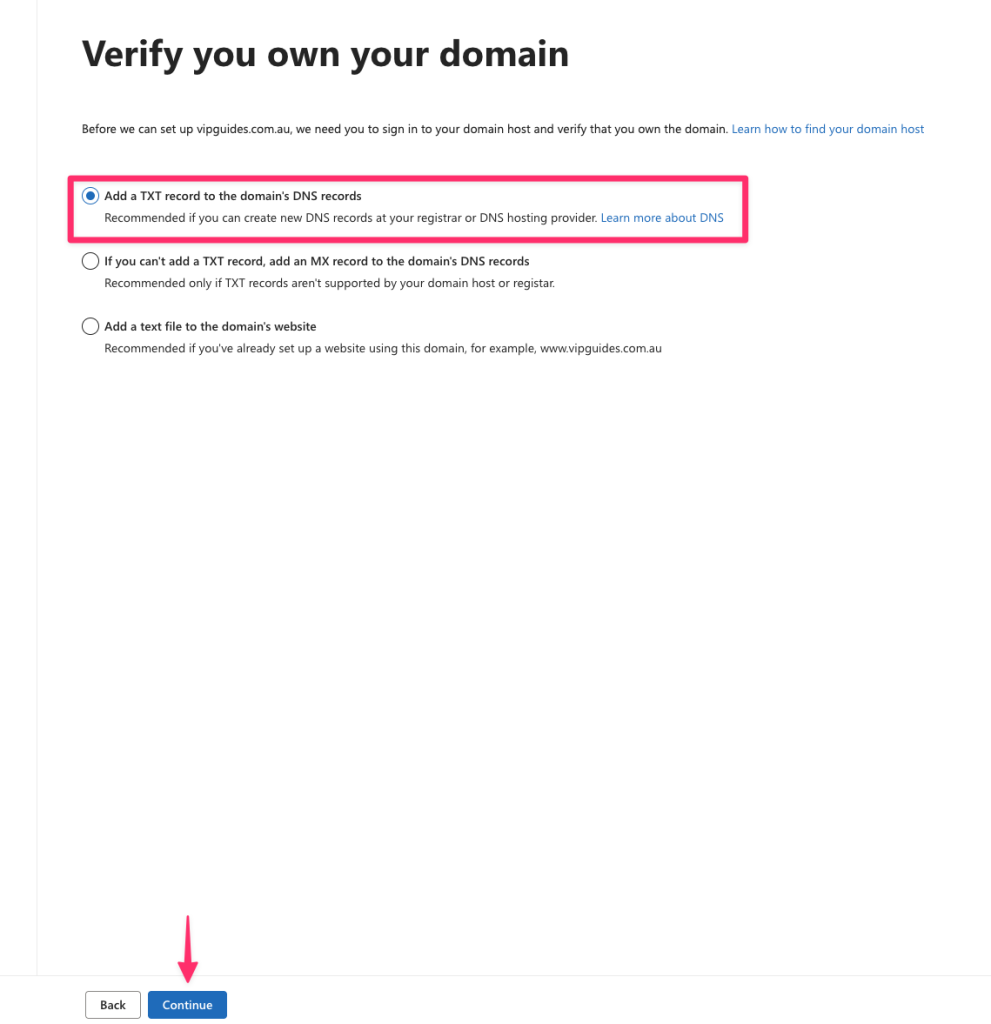
- Next you will have to verify that you own the domain, we will be adding a TXT DNS record to do this. Select the “Add a TXT record to the domain’s DNS records” option and click on ‘Continue’.
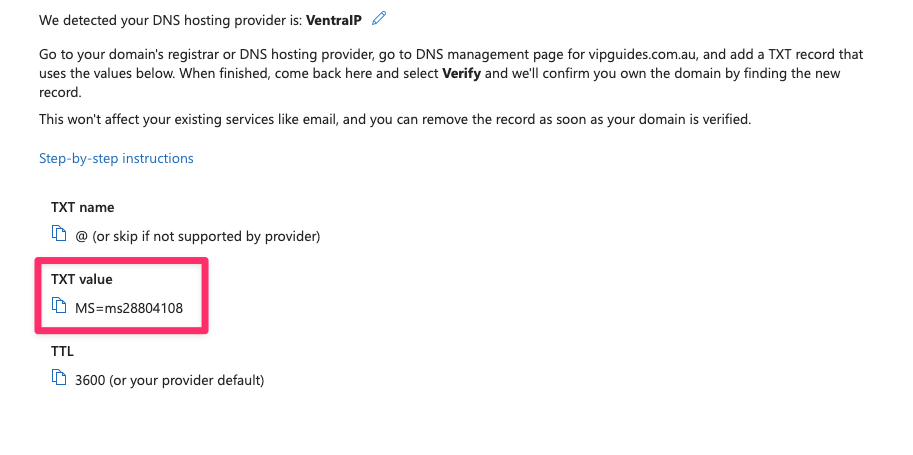
- Next you will see the TXT record that you need to add to your domains DNS.
Domain or hosting is with VentraIP
If your domain is with VentraIP, In a new tab, please navigate to the following area:
- Login to VIPcontrol
- Go to My Services → Domains → click ‘DNS’ next to your domain
- You should see the ‘DNS Hosting’ tab selected or the VentraIP Hosting tab selected.
- Copy the TXT value to your clipboard by clicking on the icon to the left of the text shown in the screenshot below
- Go back to the DNS page in VIPcontrol you opened earlier and add in the record like the following and click on the plus button to add it:
- Type: TXT
- Hostname: Leave Blank
- Value: Paste in the value you copied earlier (This should start with “MS=” followed by random numbers)
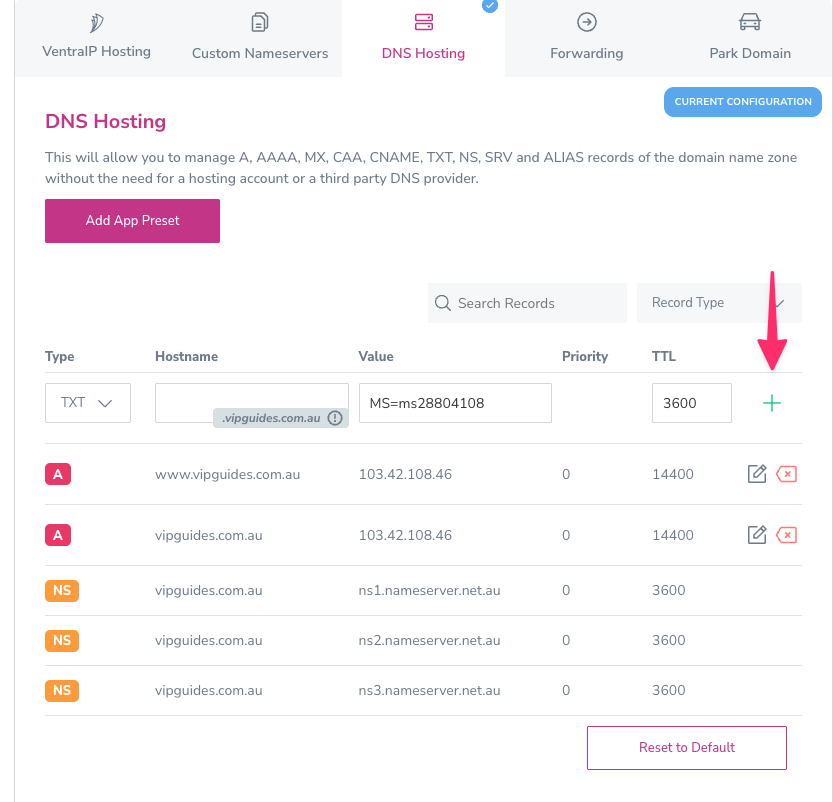
All done! Go back to the Microsoft “Add a record to verify ownership” page and click on ‘Verify’ at the bottom
Note: DNS updates can take up anywhere between 2-6 hours to propagate so it may not verify straight away
Domain or hosting is with another provider
If your domain name’s DNS hosting is not with VentraIP, (e.g. using Cloudflare) you will have to add the TXT record in with who manages your domains DNS. If you are unsure how to do this, we would recommend contacting your DNS provider for assistance adding this in.
If you don’t know who your provider is, usually Microsoft will autodetect and tell you who your provider is here:
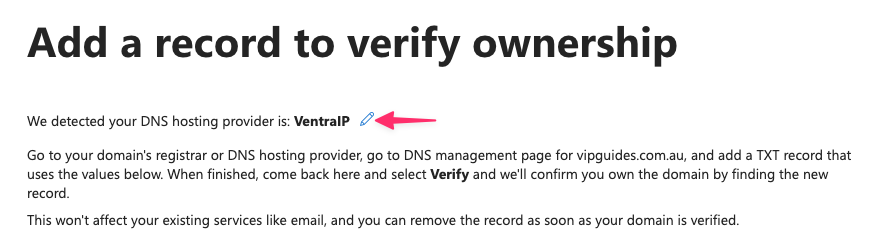
If you don’t know who your provider is or if it doesn’t autodetect, feel free to contact our team and we are happy to point you in the right direction.
Step two: Connecting Exchange to your domain
- Next in the Microsoft setup, click on ‘Continue’
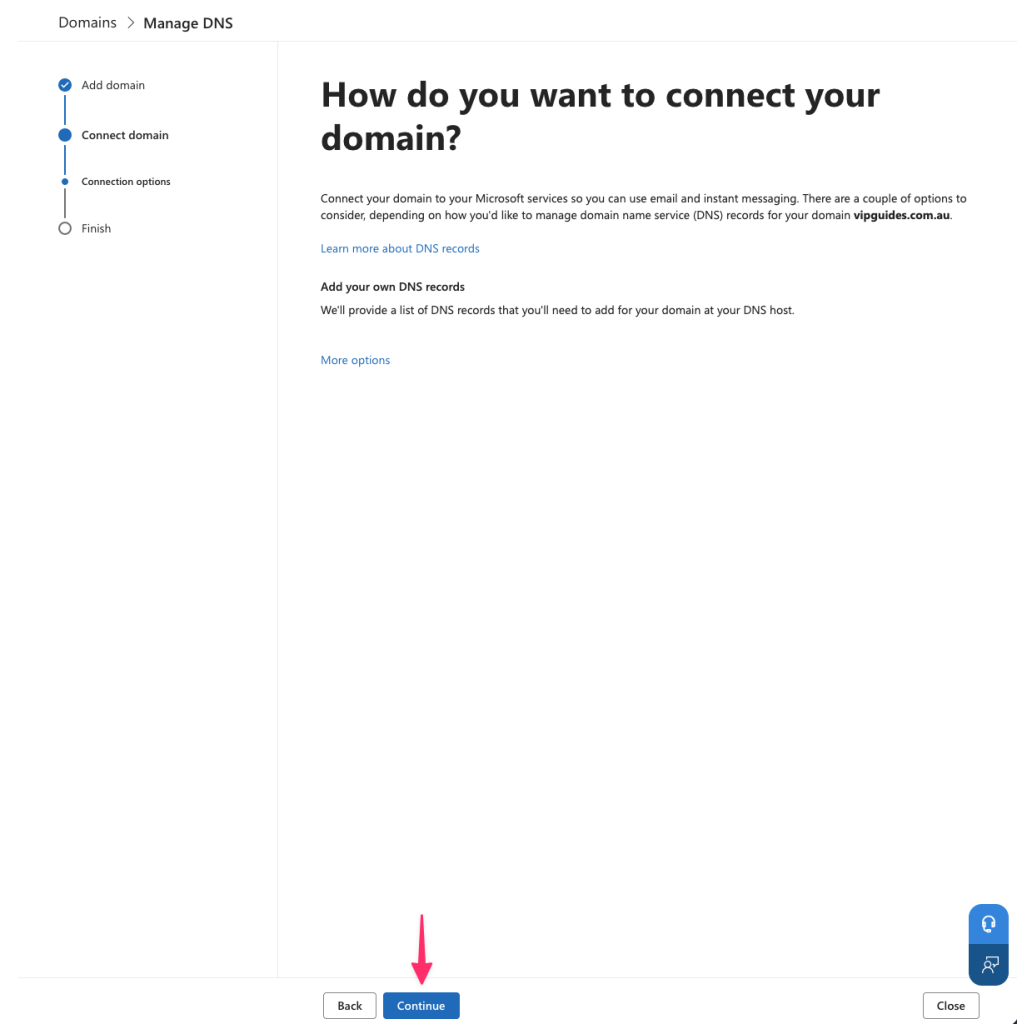
- Next, it will prompt you to add DNS records, click on the ‘Exchange and Exchange Online Protection’ checkbox and any others you would like to setup. We also recommend selecting the “DomainKeys Identified Mail (DKIM)” checkbox as well. For more information, please refer to this guide here.
- Login to VIPcontrol (if not already) and go to My Services → Domains → click ‘DNS’ next to your domain
- You should see the ‘DNS Hosting’ tab selected or the VentraIP Hosting tab selected.
- Scroll down and click the button “Add App Preset” → Click on ‘Microsoft 365’ → ‘Apply DNS Preset’.
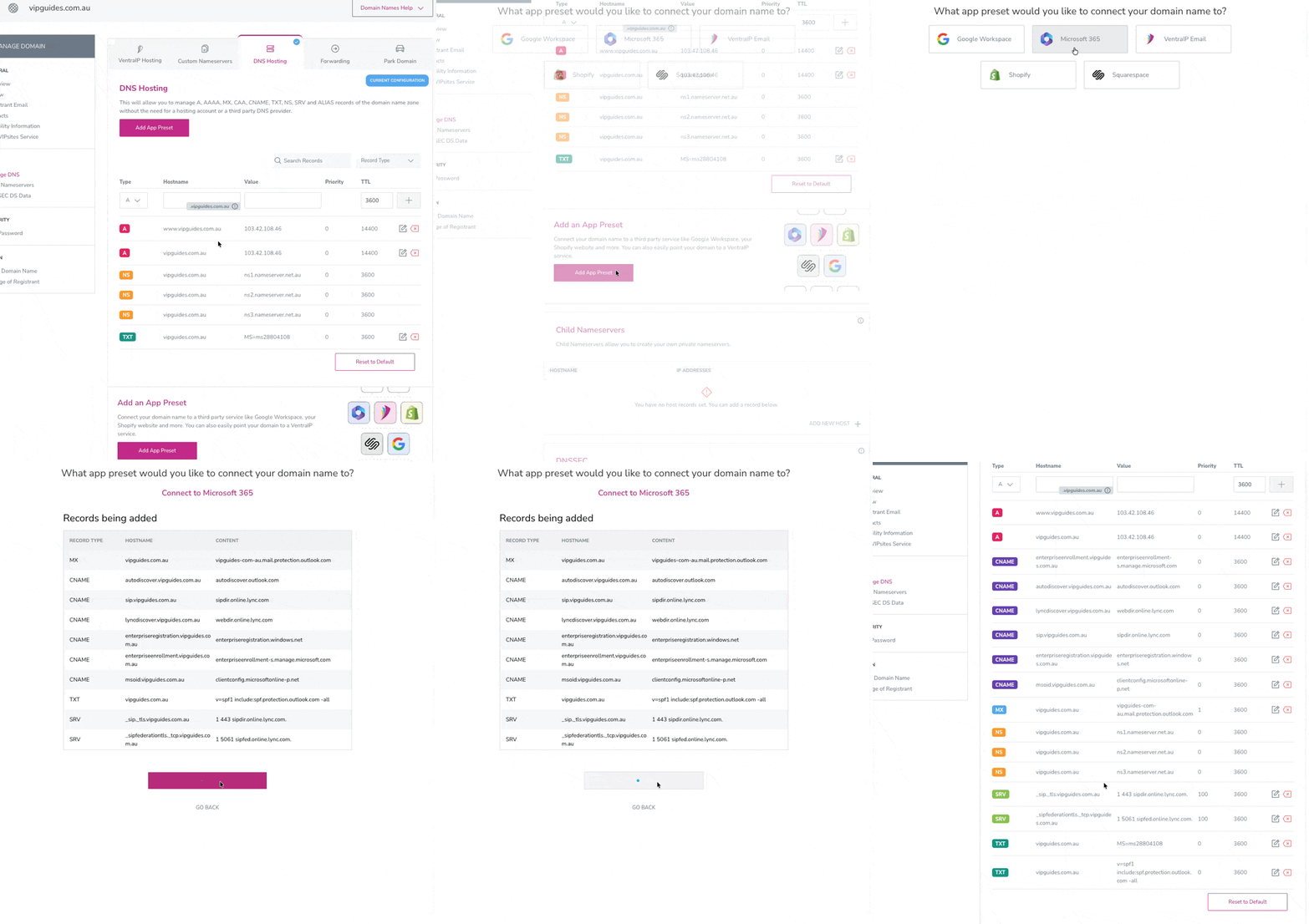
- This will add in all the required DNS records for Microsoft 365 services for you automatically. If you have selected to configure DKIM records, add the two CNAME records manually
- After the DNS records have been added, go back to the Microsoft setup page and click on ‘Continue’ and the setup should be complete!
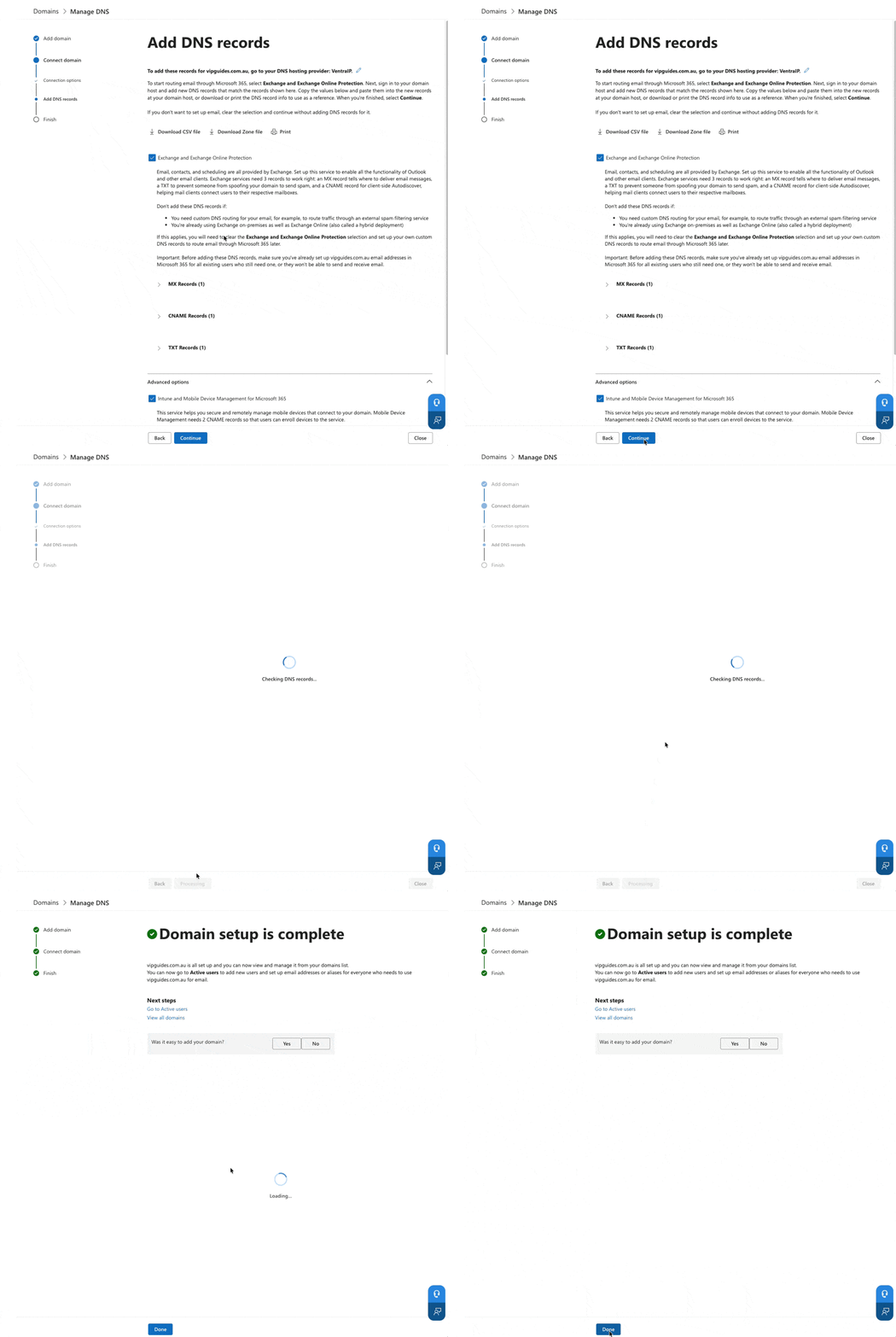
Note: DNS updates can take up anywhere between 2-6 hours to propagate so it may not verify straight away
Domain or hosting is with another provider
If your domains DNS hosting is with another provider, you would have to add these DNS records in on your providers DNS management page, If you are not sure how to do this, we would recommend reaching out to your providers support team as they will be able to add these records in for you.
If you don’t know who your provider is, Microsoft will usually tell you at the top of the page when going through the setup process, however feel free to contact our team and we are happy to point you in the right direction.
What’s next?
Next will be adding additional users and assigning licenses to them. This is part two of our getting started series. To skip ahead you can refer to any of the guides below:
- Part one: Logging into Microsoft 365 for the first time
- Part two: Adding a Domain Name to Microsoft 365
- Part three: Adding users and assigning licenses in Microsoft 365