
Support Centre
Find the answers to your questions and get the support you need with the VentraIP help centre.
Browse by Popular

Domain Name
- What is a domain name?Eligibility criteria for registering .AU domain namesPremium domain names explained

Web Hosting
View All
Email Hosting
- Outlook 365 (Classic) Email Setup GuideMail app setup for iOS (iPhone + iPad)Gmail (webmail) email setup

Google Workspace
- Getting Started with Google WorkspaceGoogle Workspace support resourcesTransferring an existing Google Workspace service to VentraIP

Account
- How do I reset my VIPcontrol password?How do I create a VentraIP account?How can I see who accessed my VentraIP account?

Troubleshooting
- How do I clear my browser cache?Troubleshooting a ‘500 internal server' errorTroubleshooting with a ping test
Restoring Files Using Acronis on Self-Managed VPS Plans (non cPanel)
This guide assumes that you have purchased the Acronis add on for your VPS. If you haven’t purchased it you can do so here
Before you begin
Once the Acronis add on is purchased, our team will install this for you and provide your login details to the Acronis portal, which will be a username and password via an eTicket.
If you didn’t receive this or have lost the password, please feel free to contact our Technical Support Team and we can provide it to you.
Restoring files
- Log in to the Acronis Cyber Protect Cloud portal.
- Login: Enter your username that was provided (e.g. vps_xxxxxxx)
- Password: Enter the password provided.
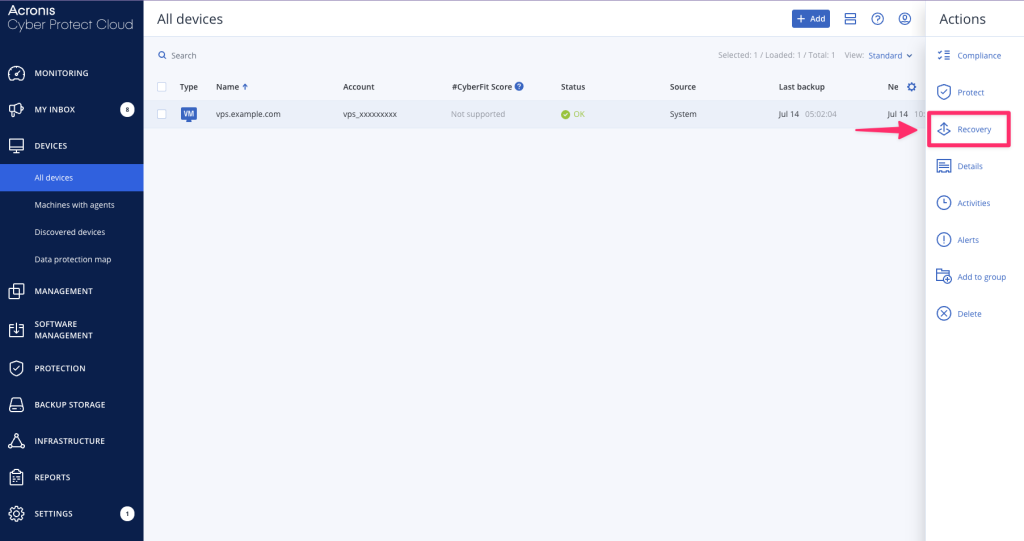
- Go to Devices → All devices → Click on your VPS from the list → Click ‘Recovery’
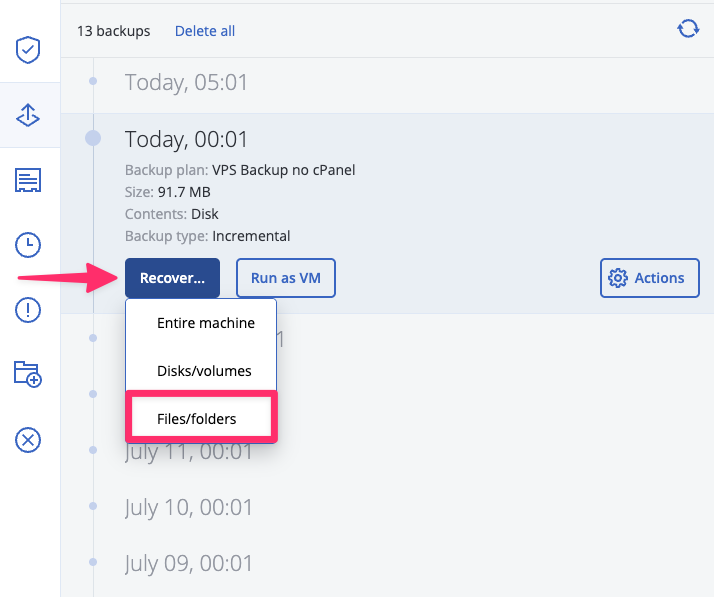
- From there, a list of available backups will pop out, select the backup point you would like to recover from and click ‘Recover’ → ‘Files/folders’
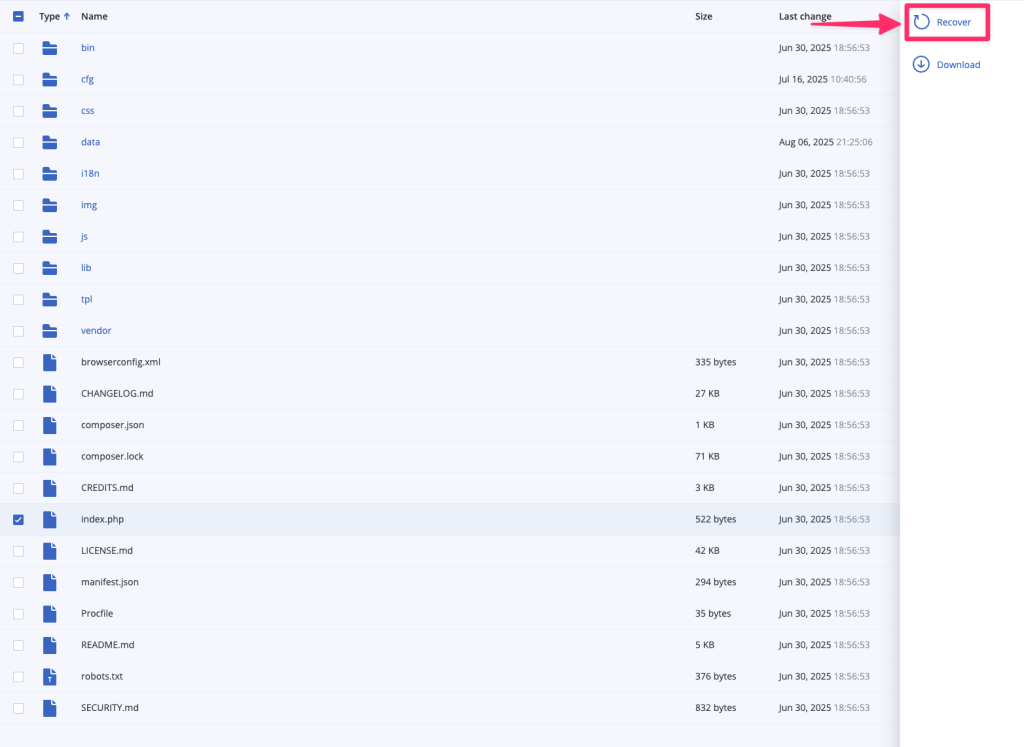
- You’ll be able to navigate through the filesystem and select what you would like to recover. Once you’ve selected, click ‘Recover’.
- Click ‘Start Recovery’
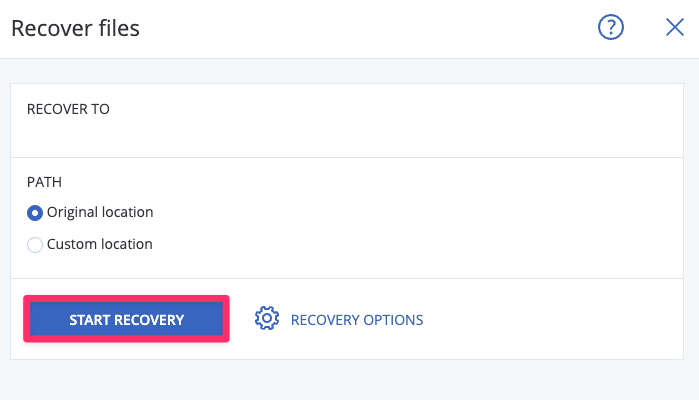
- Check ‘Overwrite existing files’ and uncheck “Automatically restart the machine, if required” → Click ‘Proceed’‘
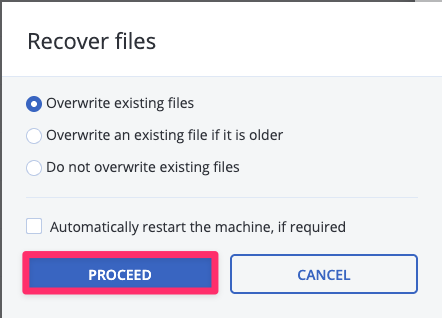
- The restore will be initiated, another window will pop up and display the restores status.
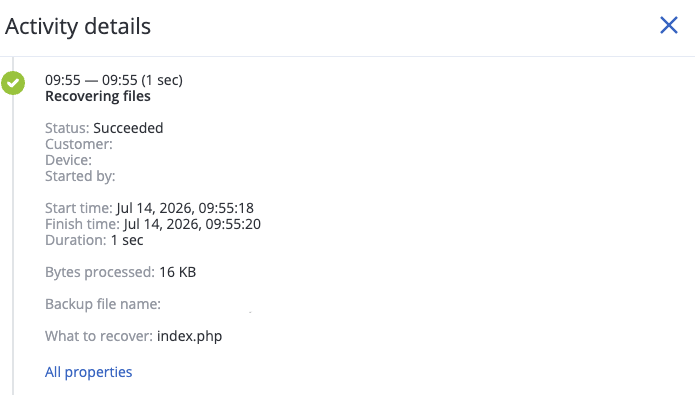
- All done.
Need assistance?
If you have any additional questions or queries about this, we recommend submitting an eTicket to our Technical Support Team, as we will be happy to answer any questions you may have.

We Are Here to Help You
Get in touch with one of our local experts at any time.