
Support Centre
Find the answers to your questions and get the support you need with the VentraIP help centre.
Browse by Popular

Domain Name
- What is a domain name?Eligibility criteria for registering .AU domain namesPremium domain names explained

Web Hosting
View All
Email Hosting
- Outlook 365 (Classic) Email Setup GuideMail app setup for iOS (iPhone + iPad)Gmail (webmail) email setup

Google Workspace
- Getting Started with Google WorkspaceGoogle Workspace support resourcesTransferring an existing Google Workspace service to VentraIP

Account
- How do I reset my VIPcontrol password?How do I create a VentraIP account?How can I see who accessed my VentraIP account?

Troubleshooting
- How do I clear my browser cache?Troubleshooting a ‘500 internal server' errorTroubleshooting with a ping test
Updating the Business Name in Microsoft 365
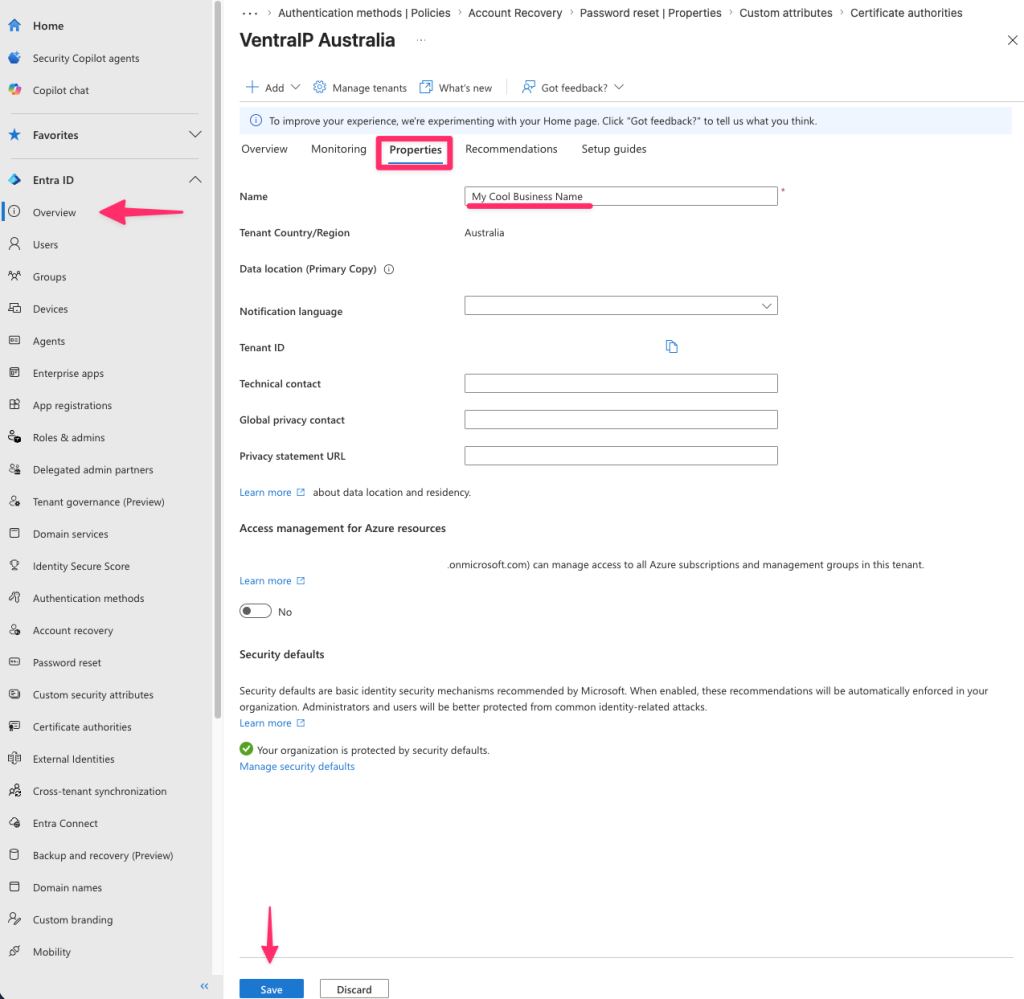
When you purchase a Microsoft 365 service from us, the default business name will be ‘VentraIP Australia’. This guide will walk through changing this to your own business name!
- Login to the Microsoft Entra admin center as a user with the Entra Administrator or Global Administrator role.
- Go to ‘Overview’ → ‘Properties’ tab.
- Under Name, remove ‘VentraIP Australia’ and type in your business name or what you want the tenancy to be named.
- Click ‘Save’ at the bottom of the page, all done!

We Are Here to Help You
Get in touch with one of our local experts at any time.