
Support Centre
Find the answers to your questions and get the support you need with the VentraIP help centre.
Browse by Popular
Domain Name
- What is a domain name?Eligibility criteria for registering .AU domain namesPremium domain names explained

Web Hosting
View All
Email Hosting
- Outlook 365 (Classic) Email Setup GuideMail app setup for iOS (iPhone + iPad)Gmail (webmail) email setup

Google Workspace
- Getting Started with Google WorkspaceGoogle Workspace support resourcesTransferring an existing Google Workspace service to VentraIP
Account
- How do I reset my VIPcontrol password?How do I create a VentraIP account?How can I see who accessed my VentraIP account?

Troubleshooting
- How do I clear my browser cache?Troubleshooting a ‘500 internal server' errorTroubleshooting with a ping test
Enabling Two-Factor Authentication (2FA) for cPanel
Enabling Two-Factor Authentication for cPanel
Two-factor authentication or 2FA is the most secure way to lock down your account and ensure only you can gain access. This is achieved by ensuring you’re always notified when a login attempt is made. This extra step makes a world of difference when protecting your account.
Important:
- 2FA supports only one concurrent session for any user. If you open several browser windows to cPanel and log out in one of them, the server will log out of the other windows.
Configure Two-Factor Authentication for cPanel
To configure 2FA, perform the following steps:
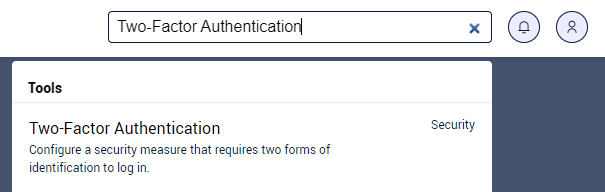
- Search Two-Factor Authentication in the search bar in cPanel
- Click Set Up Two-Factor Authentication.
- Link your cPanel account and your 2FA app:
- To automatically create the link, scan the displayed QR code with your app.
- To manually create the link, enter the provided Account and Key information in your app.
- Within your 2FA app, retrieve the six-digit security code
- Enter the six-digit security code in the Security Code text box.
- Click Configure Two-Factor Authentication.
Remove 2FA
To remove 2FA, click Remove Two-Factor Authentication.

We Are Here to Help You
Get in touch with one of our local experts at any time.