


Support Centre
Find the answers to your questions and get the support you need with the VentraIP help centre.
Browse by Popular

Domain Name
- What is a domain name?Eligibility criteria for registering .AU domain namesPremium domain names explained

Web Hosting
View All
Email Hosting
- Outlook 365 (Classic) Email Setup GuideMail app setup for iOS (iPhone + iPad)Gmail (webmail) email setup

Google Workspace
- Getting Started with Google WorkspaceGoogle Workspace support resourcesTransferring an existing Google Workspace service to VentraIP

Account
- How do I reset my VIPcontrol password?How do I create a VentraIP account?How can I see who accessed my VentraIP account?

Troubleshooting
- How do I clear my browser cache?Troubleshooting a ‘500 internal server' errorTroubleshooting with a ping test
Add Multiple Pages to your VIPsites Website
Expanding your website to include multiple pages is a great way to organise your content and enhance your user experience. This guide will go over adding multiple pages to your website.
Adding pages
To add a page:
- Navigate to the Website Editor
- On the Website Layout page, click ‘Add a new page’.
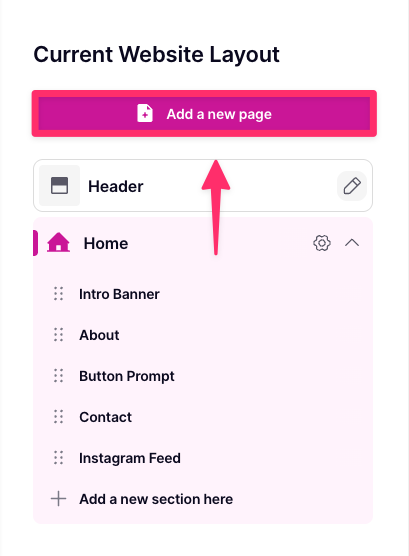
- You’ll be able to select which type of page that you would like to add, or choose a blank page if you want to add sections later.
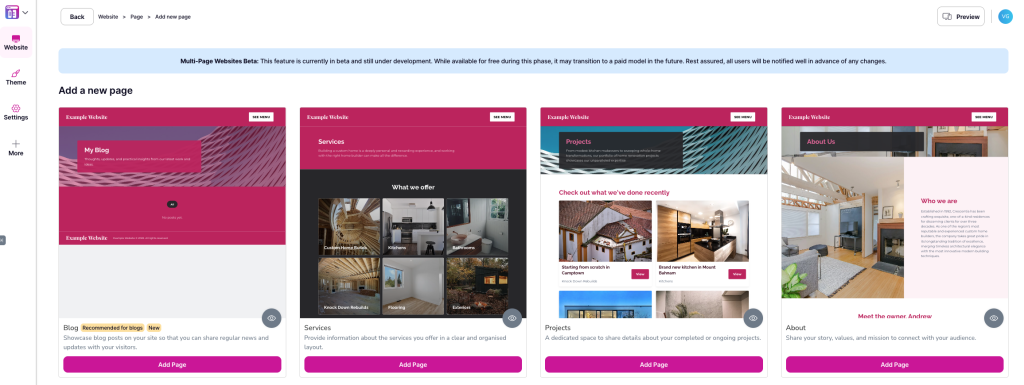
- Once you have selected a page you want to add, click‘Add page’.
- Done! You can start building and customising your new pages.
Frequently asked questions
Will my website’s navigation bar change when I add multiple pages?
Yes. When switching from a single-page website to a multi-page website, your navigation bar will update to reflect the pages you have added, not the sections within your pages. This ensures seamless navigation for your visitors.
Can I go back to a single-page layout if needed?
Absolutely! Simply consolidate your content onto one page and adjust your navigation bar by editing the heading page within the layout editor.

We Are Here to Help You
Get in touch with one of our local experts at any time.