
Browse by Popular
Domain Name
- What is a domain name?Eligibility criteria for registering .AU domain namesPremium domain names explained
Web Hosting
View All
Email Hosting
- Outlook 365 (Classic) Email Setup GuideMail app setup for iOS (iPhone + iPad)Gmail (webmail) email setup
Google Workspace
- Getting Started with Google WorkspaceGoogle Workspace support resourcesTransferring an existing Google Workspace service to VentraIP
Account
- How do I reset my VIPcontrol password?How do I create a VentraIP account?How can I see who accessed my VentraIP account?

Troubleshooting
- How do I clear my browser cache?Troubleshooting a ‘500 internal server' errorTroubleshooting with a ping test
Customising Sections on your VIPsite Website
Each page section has its own customisation. This guide will go over customising sections and common options on your VIPsite website.
Appearance customisation
To adjust how the section looks, within the Website Layout Editor, click on a section to edit it.
While editing the section, click the Appearance tab at the top.
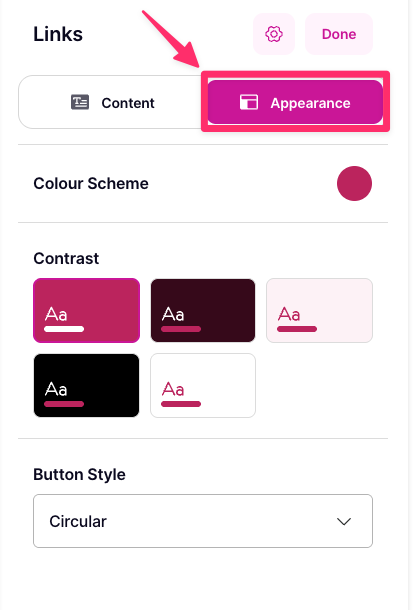 You’ll then be able to change the elements of the section to your liking. Typically the options that you can customise are:
- Content style.
- Colour scheme.
- Contrast of the colour over the section’s content.
- Image/media upload options.
Content style
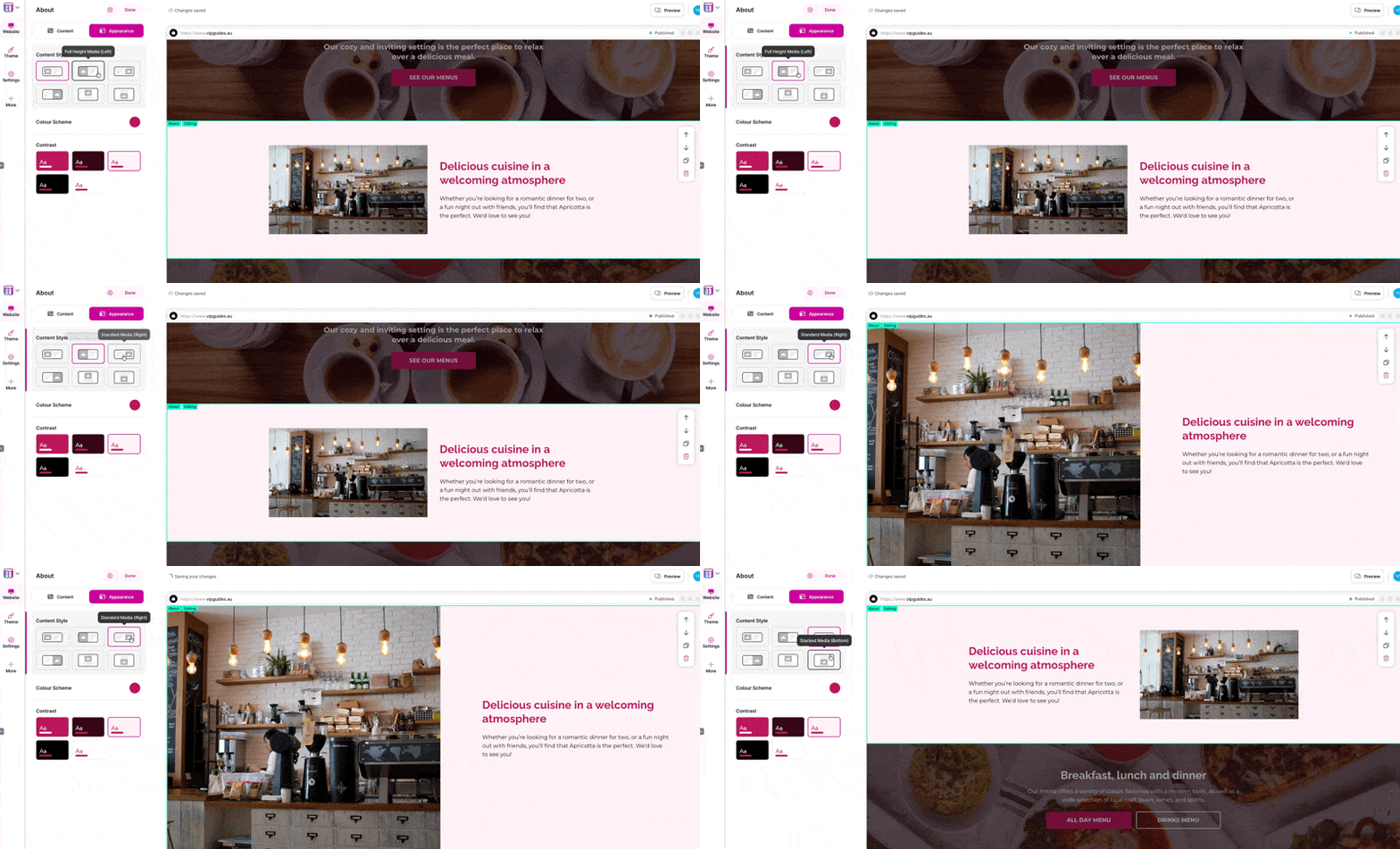
You can adjust where the content is arranged by picking and choosing the content style from the available options.
Colour scheme
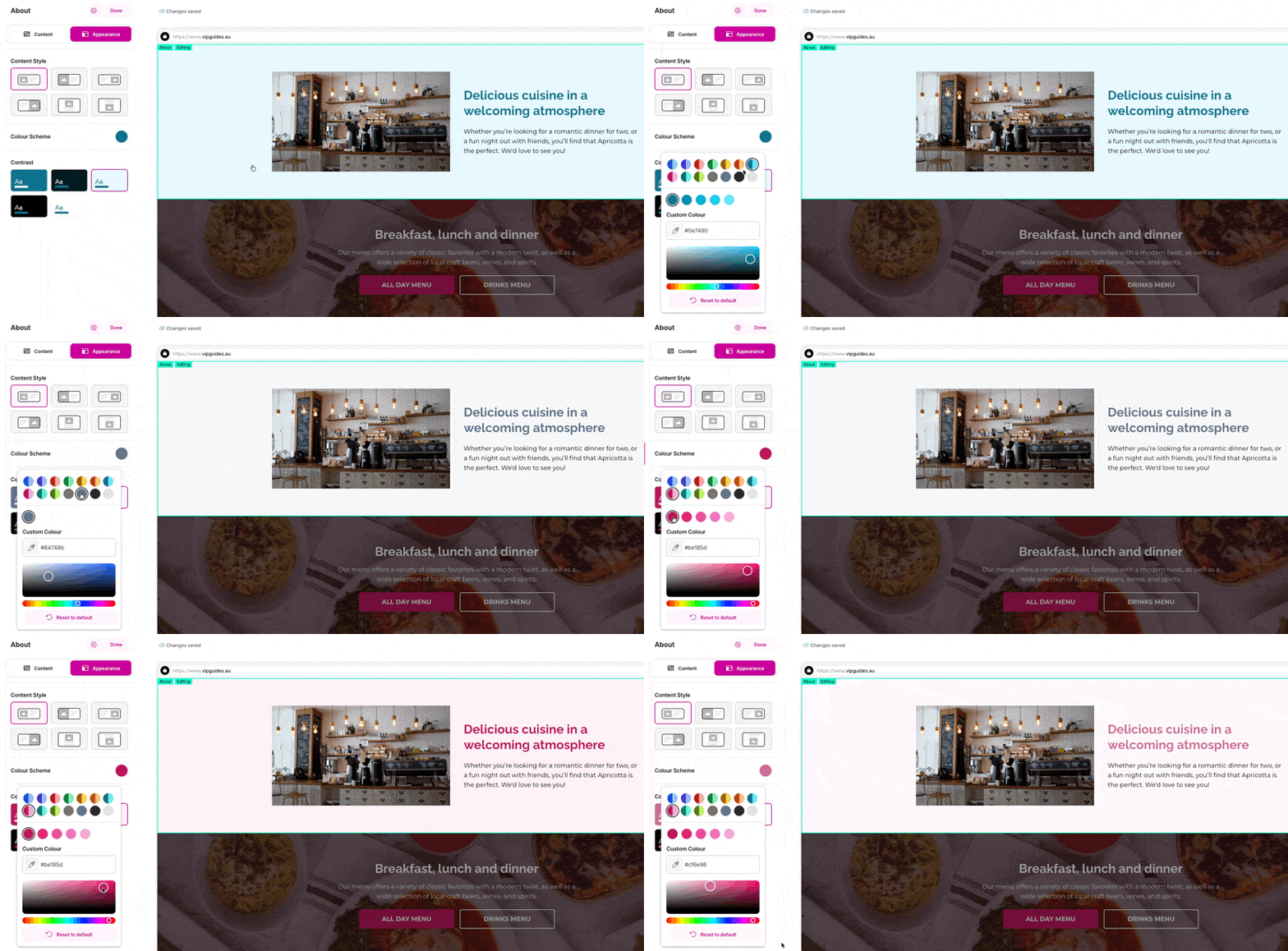
You can pick what colour you would like the section to be in by clicking on the colour previews. From there, you can choose from any of the preset options which gives you light and dark options. This goes hand in hand with the contrast option below.
Contrast
Changing the contrast adjusts how the colours look between text and the background.
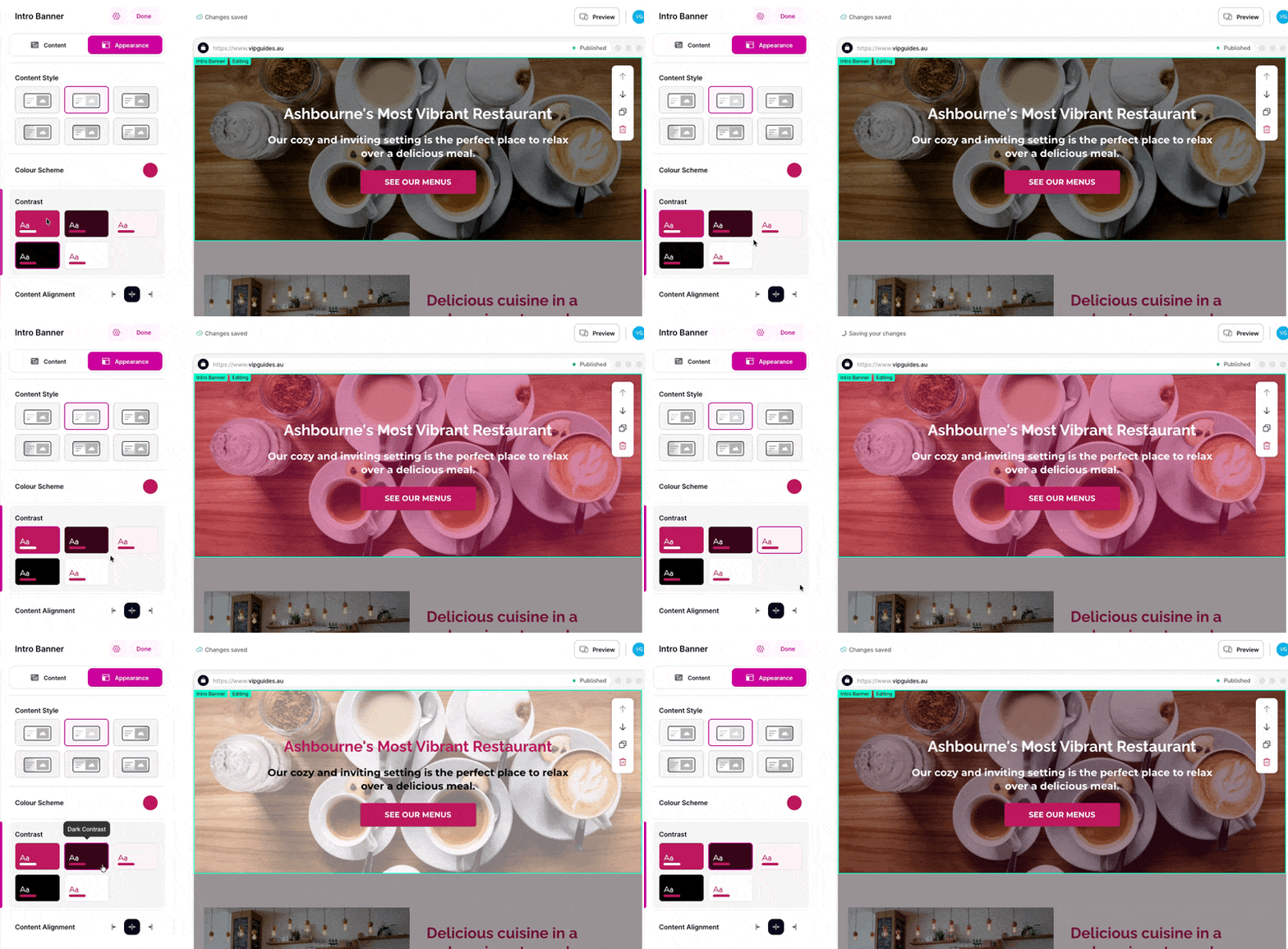 If a background image is present, the colour of the section will be overlayed on top, similar to a filter.
Button customisation
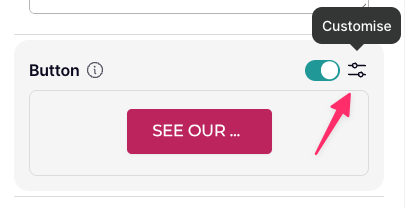
Buttons are able to be customised with most of the same options as sections themselves. To adjust them, click on the customise icon within the relevant section:
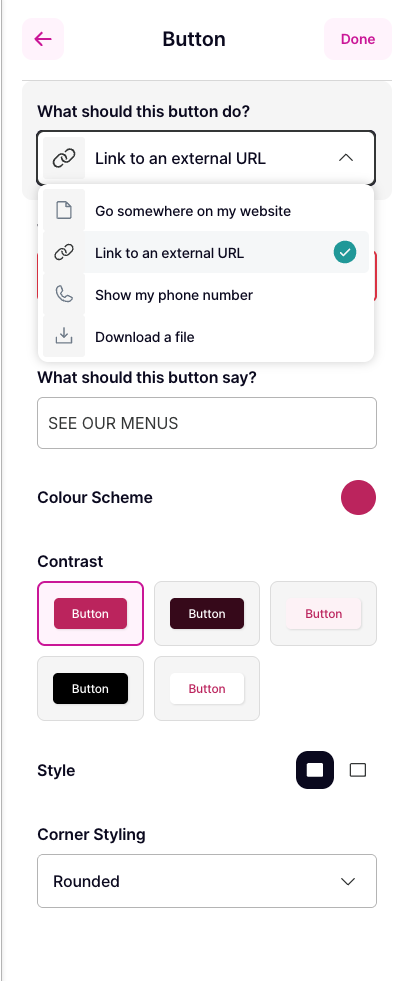 You can then adjust:
- The action of the button.
- Text shown on the button.
- Colour of the button.
- Contrast.
- Border and corner style.
Managing sections
To learn how to arrange, duplicate, rename, and delete sections, please see this guide below: