


Support Centre
Find the answers to your questions and get the support you need with the VentraIP help centre.
Browse by Popular

Domain Name
- What is a domain name?Eligibility criteria for registering .AU domain namesPremium domain names explained

Web Hosting
View All
Email Hosting
- Outlook 365 (Classic) Email Setup GuideMail app setup for iOS (iPhone + iPad)Gmail (webmail) email setup

Google Workspace
- Getting Started with Google WorkspaceGoogle Workspace support resourcesTransferring an existing Google Workspace service to VentraIP
Account
- How do I reset my VIPcontrol password?How do I create a VentraIP account?How can I see who accessed my VentraIP account?

Troubleshooting
- How do I clear my browser cache?Troubleshooting a ‘500 internal server' errorTroubleshooting with a ping test
Managing Sections on Your VIPsite’s Website
Moving/rearranging Sections
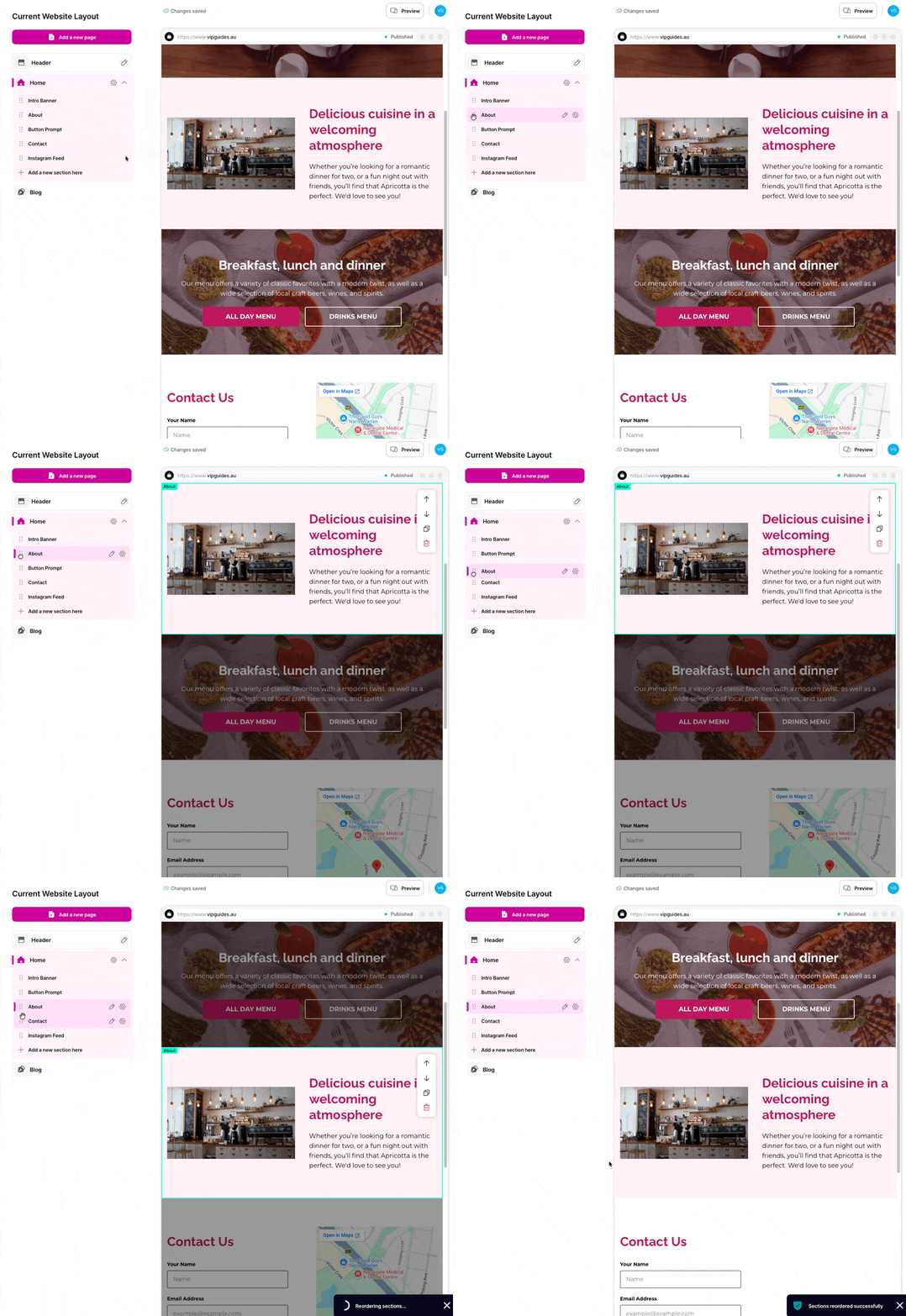
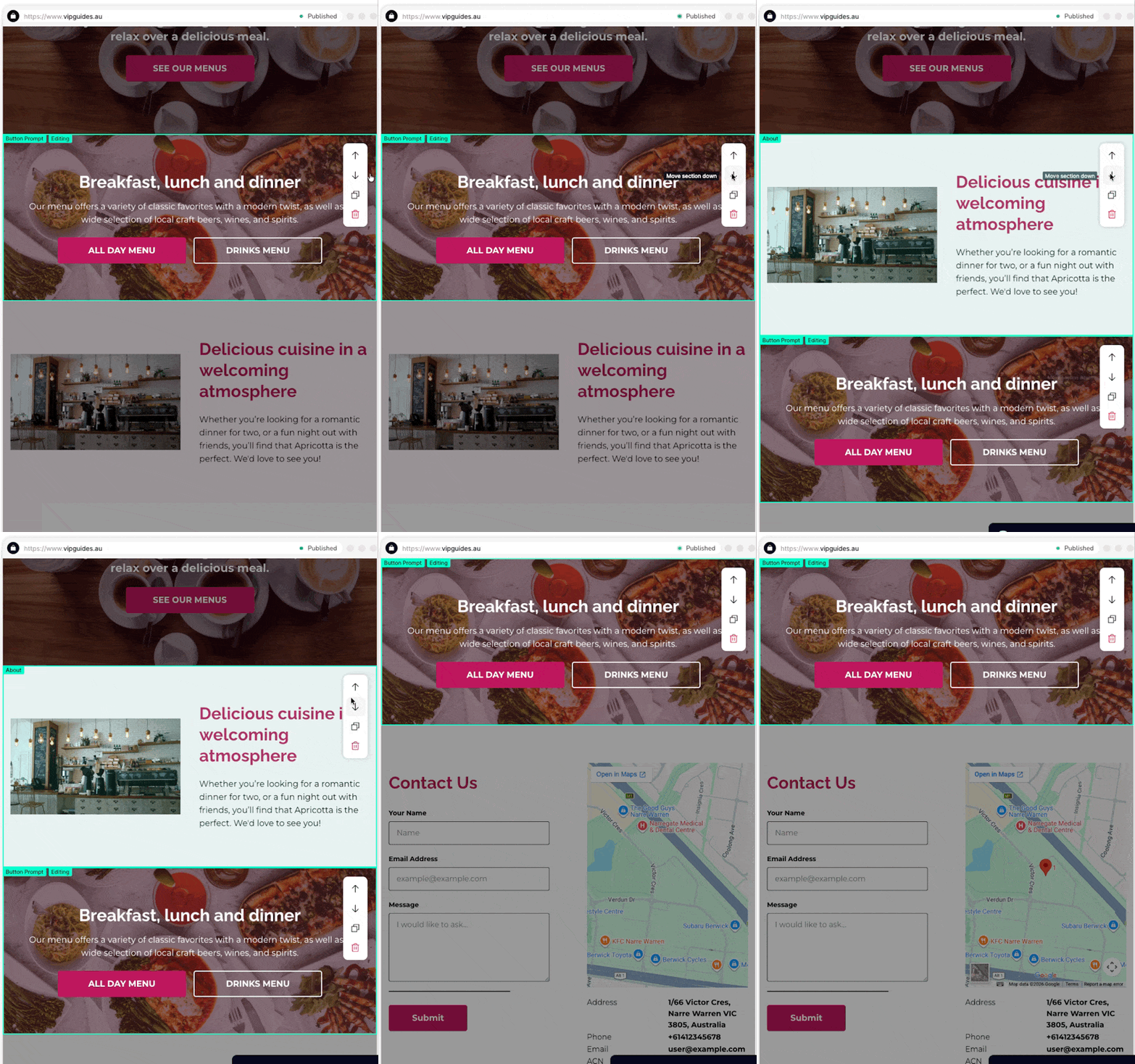
To move a section, you can do this in two ways:
- Navigate to the Website Editor → Click and drag up or down to relocate it.
- Navigate to the Website Editor → Click on the section within the preview and click either the up or down arrows to move the section.
Duplicating Sections
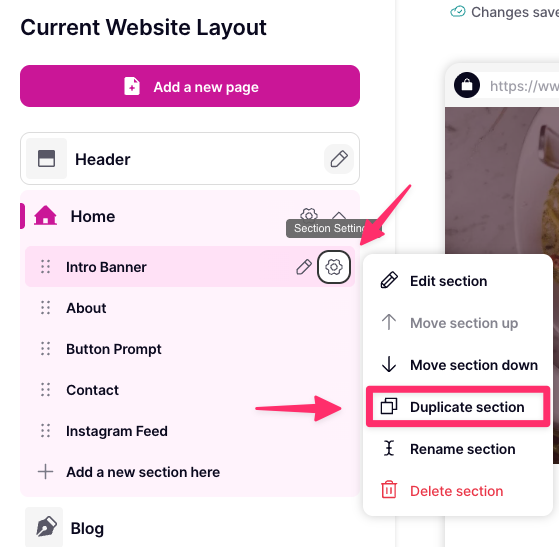
To duplicate a section:
- Navigate to the Website Editor
- Click on the settings cog next to the section you would like to duplicate.
- Click ‘Duplicate section’.
Naming Sections
To name or rename a section:
- Navigate to the Website Editor
- Click on the settings cog next to the section you would like to rename.
- Click ‘Rename’ and type in a new name. Click Save.
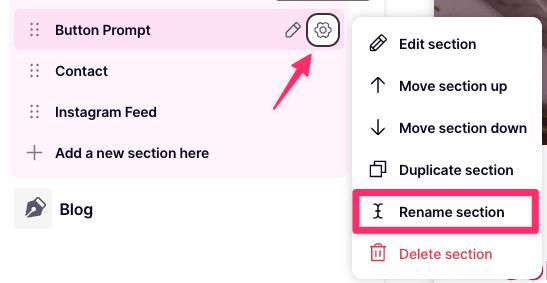
- Once renamed, this will now reflect within any places (navigation bar or buttons) that you have the section linked.
Deleting Sections
To delete a section:
- Navigate to the Website Editor
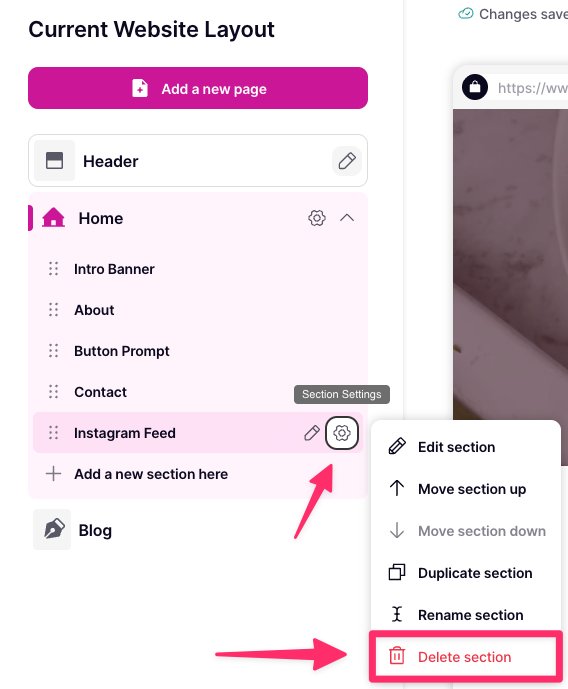
- Click on the settings cog next to the section you would like to remove.
- Click ‘Delete Section’ then click on the delete’ button again to confirm.

We Are Here to Help You
Get in touch with one of our local experts at any time.