
Browse by Popular
Domain Name
- What is a domain name?Eligibility criteria for registering .AU domain namesPremium domain names explained
Web Hosting
View All
Email Hosting
- Outlook 365 (Classic) Email Setup GuideMail app setup for iOS (iPhone + iPad)Gmail (webmail) email setup

Google Workspace
- Getting Started with Google WorkspaceGoogle Workspace support resourcesTransferring an existing Google Workspace service to VentraIP
Account
- How do I reset my VIPcontrol password?How do I create a VentraIP account?How can I see who accessed my VentraIP account?

Troubleshooting
- How do I clear my browser cache?Troubleshooting a ‘500 internal server' errorTroubleshooting with a ping test
Adding a Contact Form to Your VIPsites Website
This guide will go over adding a contact form to your website so that your customers can directly inquire about your services all from the website!This guide will go over adding a contact form to your website so that your customers can directly inquire about your services all from the website!
Before you begin
To set up the contact form, you’ll need to add an email address to your site contact details for the form submissions to be emailed to. To do this you can use this guide below:
Once your contact information is added, you’re able to add the contact form section
Adding a contact us section
To add the contact us section:
- Navigate to the VIPsites website editor
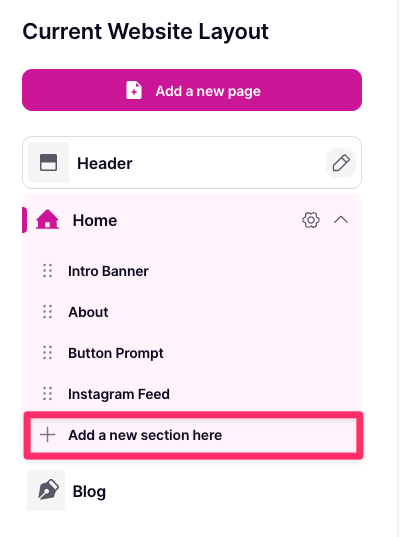
- Under an existing or new page, click ‘Add a new section here’
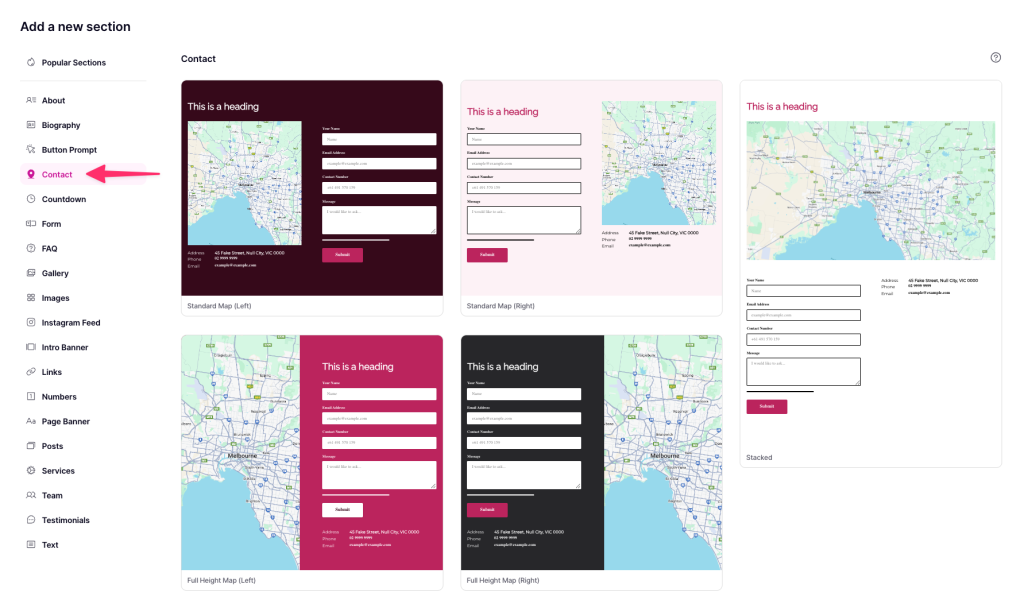
- From the section template list, click “Contact” and choose a template that you like.
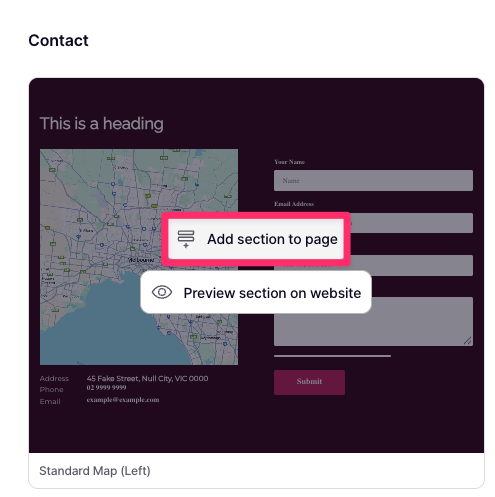
- Once you have selected a template, click ‘Add section to page’
- You’ll be able to see the new contact section added to the page.
Editing the contact us section
When editing the section, you can customise it how you like. Some of the options you can adjust are:
- Heading and heading size
- Google Maps view
- Content arrangement, colour scheme and appearance.
You’re also able to choose what contact information that you would like to display on the page directly as well, such as:
- Street address
- Phone number
- Email address
- Opening hours
- ABN/ACN
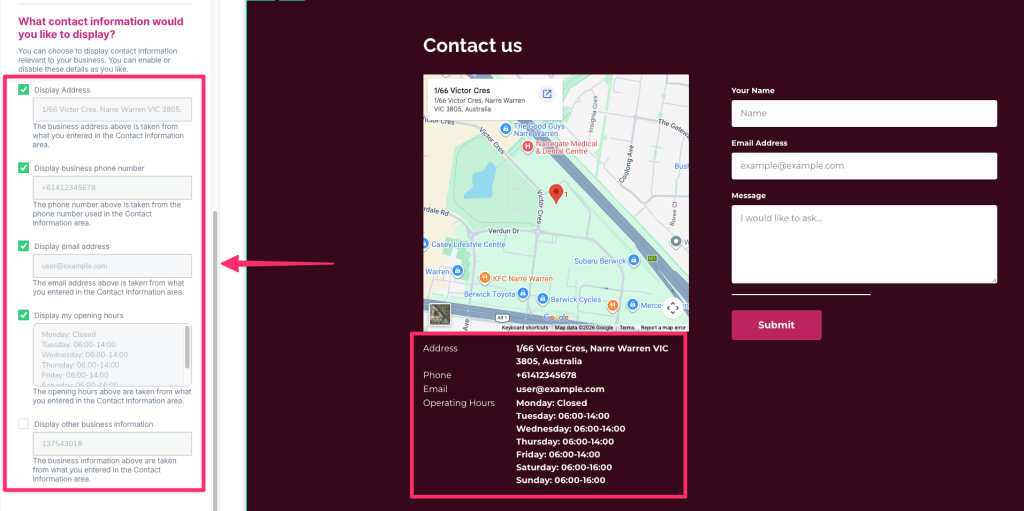 All information displayed is taken from the contact information area. No personal account information is used.
Form Fields
You are also able to choose what information that you would like to collect in the form:
- Name: The customers name
- Email Address: The customers email address
- Contact Number: The customers contact number
- Message: The customers inquiry message
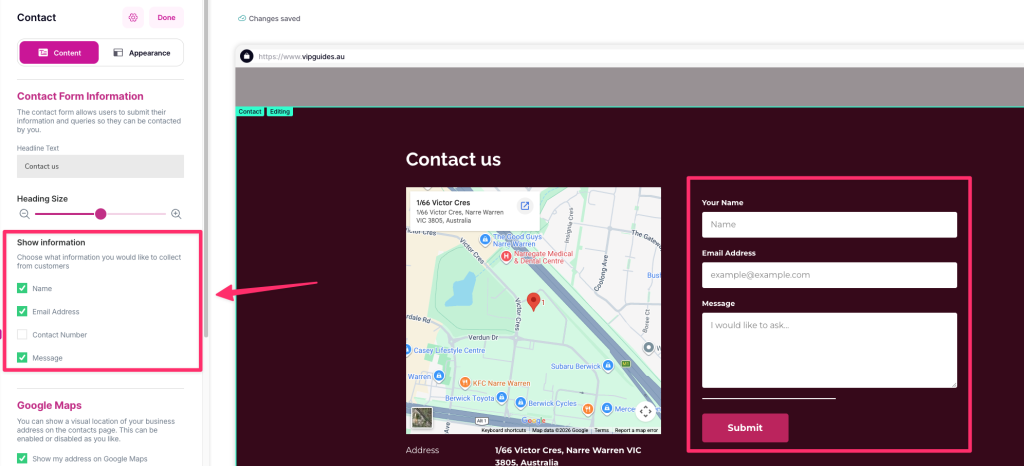 Once the form is submitted, the submission will be emailed to the email address entered in the contact information area. Please make sure that this email account is set up and is able to receive emails.