
Support Centre
Find the answers to your questions and get the support you need with the VentraIP help centre.
Browse by Popular

Domain Name
- What is a domain name?Eligibility criteria for registering .AU domain namesPremium domain names explained

Web Hosting
View All
Email Hosting
- Outlook 365 (Classic) Email Setup GuideMail app setup for iOS (iPhone + iPad)Gmail (webmail) email setup

Google Workspace
- Getting Started with Google WorkspaceGoogle Workspace support resourcesTransferring an existing Google Workspace service to VentraIP
Account
- How do I reset my VIPcontrol password?How do I create a VentraIP account?How can I see who accessed my VentraIP account?

Troubleshooting
- How do I clear my browser cache?Troubleshooting a ‘500 internal server' errorTroubleshooting with a ping test
How do I set up Automatic Payments?
Currently, we offer the ability to set up automatic payments through Credit/Debit cards or PayPal. We are unable to process payments automatically through BPAY or PayID. If your default payment method is set to use any of these, you will need to manually pay your invoice.
Enabling automatic payments via Credit/Debit Card
- Log in to VIPcontrol.
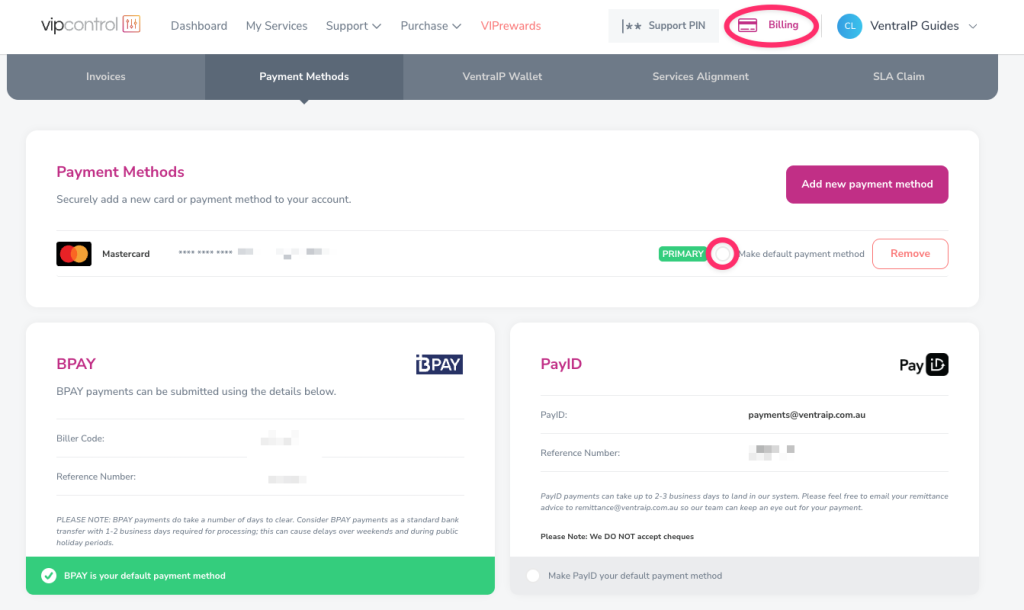
- Click Billing in the top right of this page.
- Under Payment Methods -> Credit Card you will see your stored credit card. If there is not one listed, you’ll be able to add your Credit/Debit Card by clicking ‘Add new payment method‘ and choosing Credit Card and entering your details.
- Next, tick the ‘Make Credit Card my default payment method‘ checkbox.
Enabling automatic payments via PayPal
If your PayPal account is already saved
- Log in to VIPcontrol.
- Click Billing in the top right of this page.
- Under Payment Methods you will see your stored PayPal account.
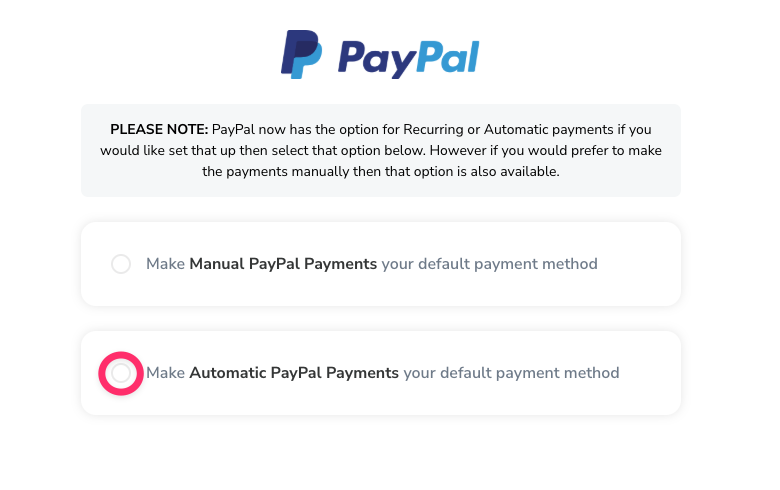
- Click on the ‘Make Automatic PayPal Payments your default payment method‘ checkbox.
If you haven’t added a PayPal account
- Log in to VIPcontrol.
- Click Billing in the top right of this page.
- Under Payment Methods.
- Add your PayPal account by clicking the button ‘Add new payment method‘ and choosing PayPal.
- Next, tick the ‘Make Automatic PayPal Payments your default payment method‘ checkbox and add your PayPal account from there.
How automatic billing works
Domain Names
If you want your domain name registrations to automatically renew, you will need to opt-in to Auto-Renew by toggling this ON from My Services → Domain Management.
If auto-renew is enabled, 14 days prior to the expiry date:
- An invoice will be automatically generated.
- An automatic payment will be attempted.
- If this attempt fails, we will notify you via email. Our system will not attempt payment again.
Other services (cPanel Hosting, Google Workspace, Microsoft 365, Email Hosting)
Based on your Invoice Generation Preference, an invoice will be generated in an “unpaid” state. Then 3 days before the due date:
- We will attempt to automatically charge the invoice.
- You will receive a payment confirmation by email.
- If this attempt fails, we will notify you via email. Our system will not attempt payment again.

We Are Here to Help You
Get in touch with one of our local experts at any time.