
Browse by Popular

Domain Name
- What is a domain name?Eligibility criteria for registering .AU domain namesPremium domain names explained

Web Hosting
View All
Email Hosting
- Outlook 365 (Classic) Email Setup GuideMail app setup for iOS (iPhone + iPad)Gmail (webmail) email setup

Google Workspace
- Getting Started with Google WorkspaceGoogle Workspace support resourcesTransferring an existing Google Workspace service to VentraIP
Account
- How do I reset my VIPcontrol password?How do I create a VentraIP account?How can I see who accessed my VentraIP account?

Troubleshooting
- How do I clear my browser cache?Troubleshooting a ‘500 internal server' errorTroubleshooting with a ping test
All about Granular Delegated Admin Privileges (GDAP) With Microsoft 365
GDAP or Granular Delegated Admin Privileges is a feature which grants our support team Global Administrator access to your Microsoft 365 tenant so we’re able to quickly assist with the day to day admin tasks and any troubleshooting assistance.
Why would we need it?
If you’re not sure how to setup your Microsoft service, or have an issue that you would like us to investigate on your behalf, or if you lose your login details, having GDAP setup allows us access your service to quickly help you.
The types of tasks our team is able to help you with GDAP access is:
- Tenant setup
- Resetting user passwords
- MFA re-registrations
- Email Migrations
- General troubleshooting
- Submitting tickets to Microsoft support on your behalf
Accepting the GDAP request
GDAP requests are sent on purchase. To accept our GDAP request, the process looks like this:
- After you purchase a service and accept the Microsoft customer user agreement, an email will be sent to your email account listed on your VIPcontrol account.
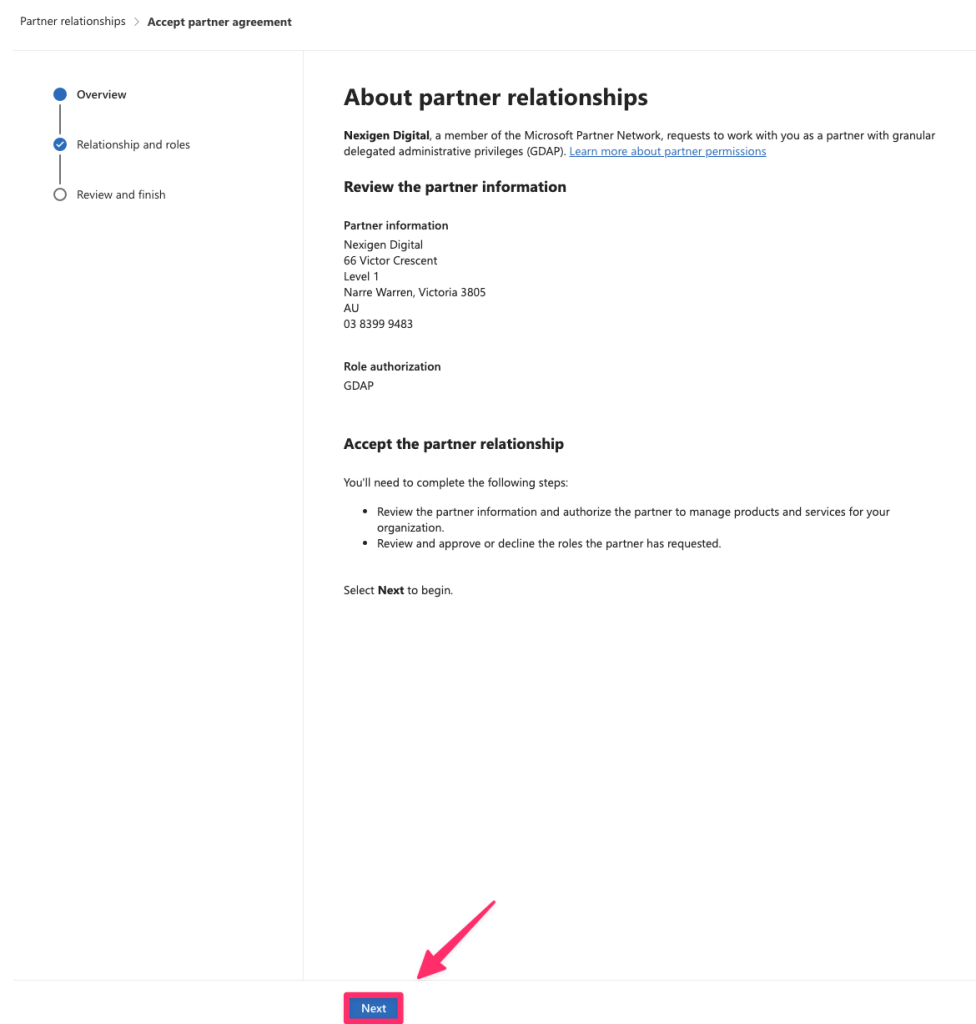
- Click on the link within the email you receive or head directly to the Partner relationship page.
- You will be prompted to sign in. Log in as the Global Administrator user and click next once the partner relationship page loads.
- You will then see Global Administrator listed as the requested roles, click Next.
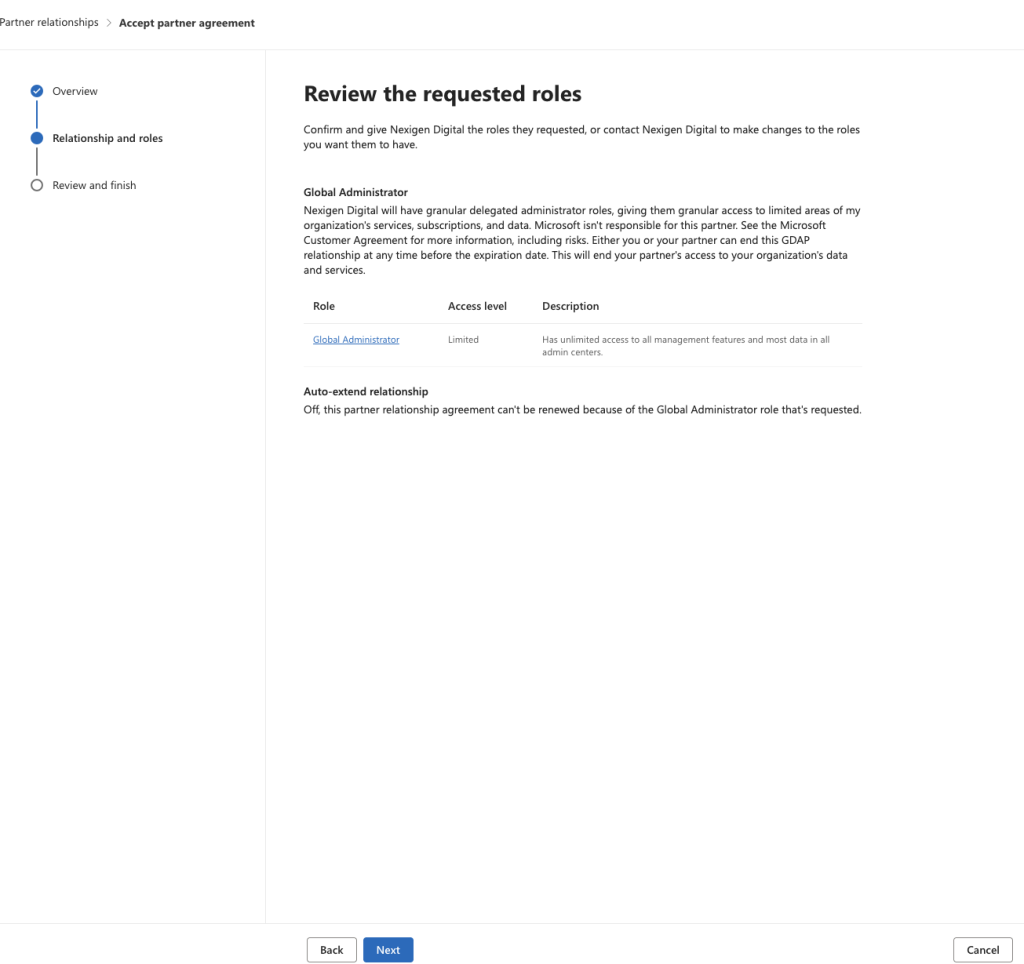
- Click ‘Next’then ‘Accept’ when prompted.
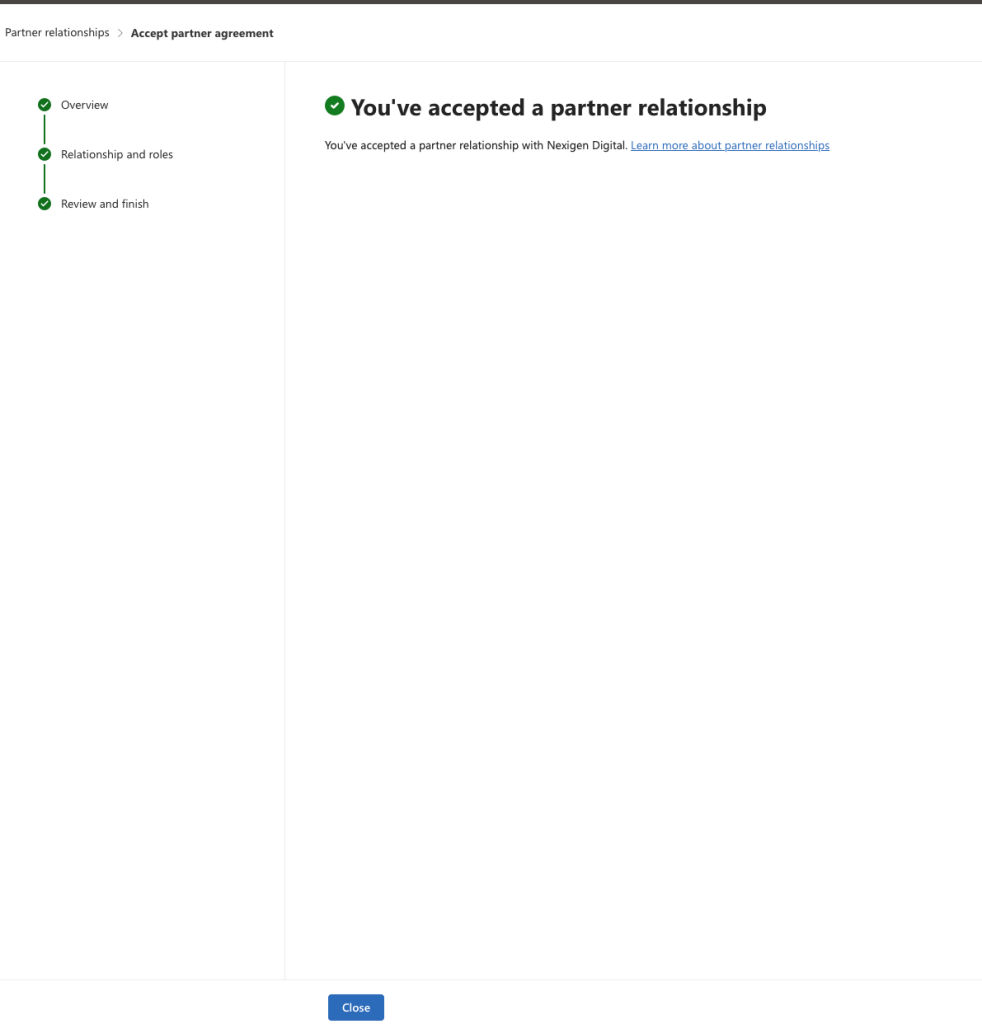
- All done! Our support team will be able to assist you with your Microsoft 365 service.
Removing GDAP access
If you would like to remove GDAP access, you can do so by:
- Logging into the Microsoft Admin Center as the Global Administrator account.
- Navigate to Settings → Partner relationships.
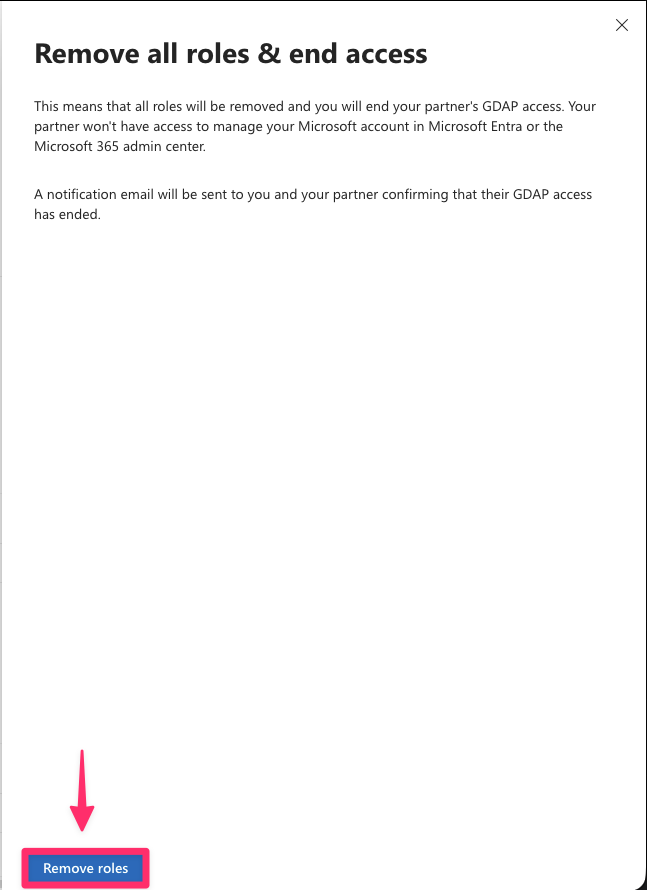
- Under Granular delegated administrative privileges (GDAP), click the three dots on the the active partner relationship under “Nexigen Digital” → Click ‘Remove roles’.

- A confirmation pop up box will appear, click ‘Remove roles’, then ‘Yes’ to revoke GDAP access.
Need any assistance?
If you have any questions about this process or need help with your Microsoft 365 service, feel free to contact our support team via eTicket and we are happy to help.