
Support Centre
Find the answers to your questions and get the support you need with the VentraIP help centre.
Browse by Popular

Domain Name
- What is a domain name?Eligibility criteria for registering .AU domain namesPremium domain names explained

Web Hosting
View All
Email Hosting
- Outlook 365 (Classic) Email Setup GuideMail app setup for iOS (iPhone + iPad)Gmail (webmail) email setup

Google Workspace
- Getting Started with Google WorkspaceGoogle Workspace support resourcesTransferring an existing Google Workspace service to VentraIP
Account
- How do I reset my VIPcontrol password?How do I create a VentraIP account?How can I see who accessed my VentraIP account?

Troubleshooting
- How do I clear my browser cache?Troubleshooting a ‘500 internal server' errorTroubleshooting with a ping test
Logging Into Your cPanel Web Hosting Service
To login to your cPanel Web Hosting service, please follow these steps:
Using the one-click login within VIPcontrol
- Log in to VIPcontrol.
- Navigate to ‘My Services’ → ‘Websites & Hosting’.
- Click on the ‘cPanel’ button.
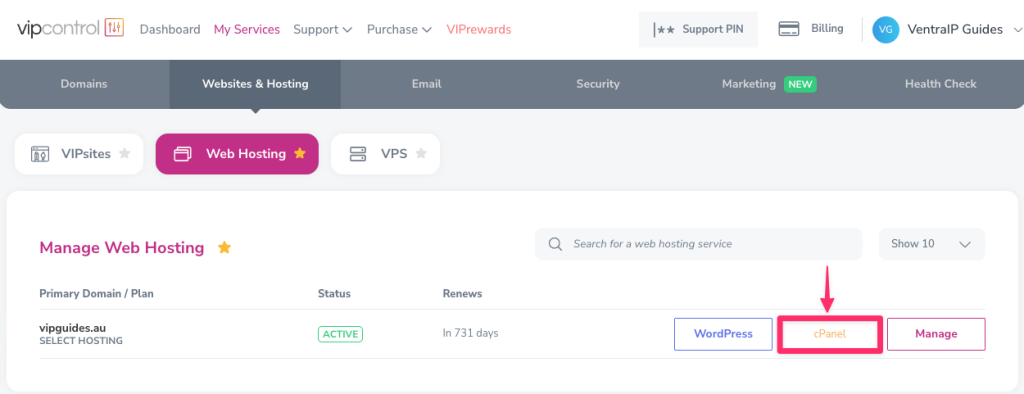
This will take you directly to the cPanel dashboard.
Logging in via a direct URL
If you need to give someone access to your hosting service (e.g. A developer) or don’t want to login to VIPcontrol every time, you can access cPanel directly using the cPanel details. To obtain them:
- Log in to VIPcontrol.
- Navigate to ‘My Services’ → ‘Websites & Hosting’.
- Click on Manage and scroll down to Details.
- Under cPanel details you will find the following information:
- cPanel Address: This is your primary login URL.
- Username: Your cPanel username.
- Password: Your cPanel user password (click the eye icon to reveal the password).
- cPanel hostname: In case you can’t access cPanel with the “cPanel Address”, you can access it directly using this URL instead.
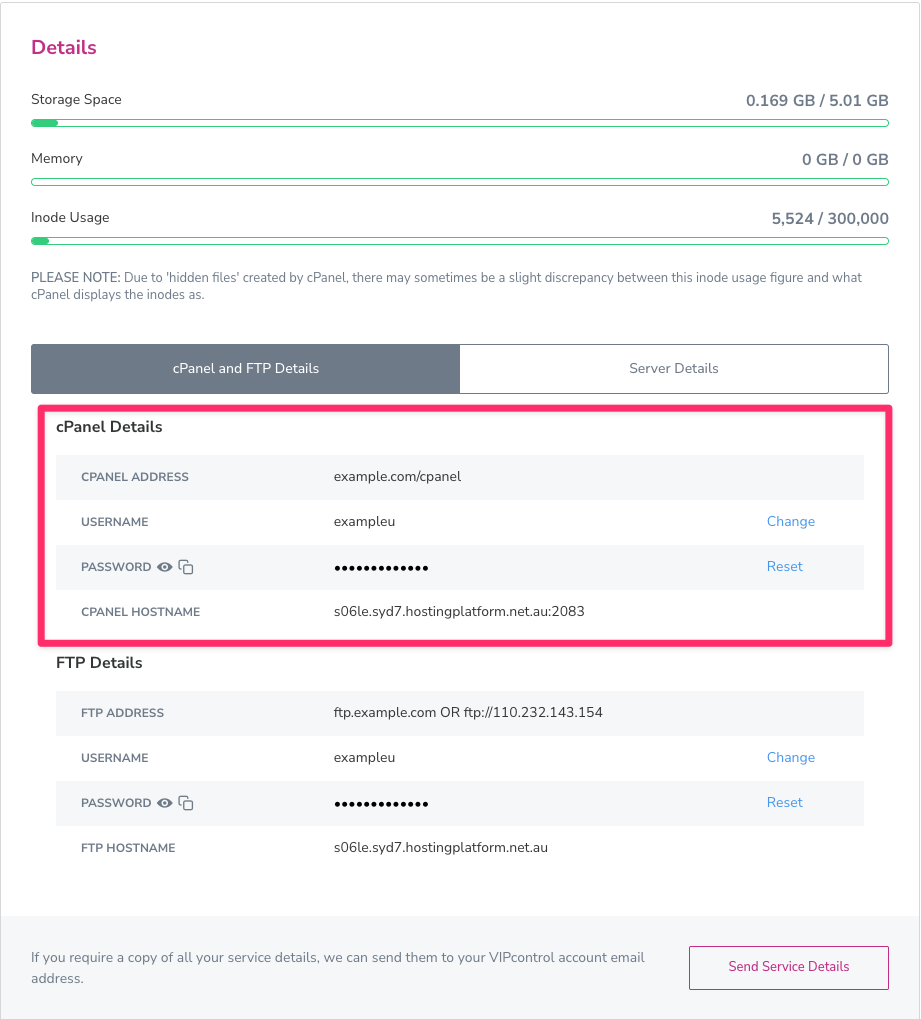 To login, you will need to do the following:
- Copy your cPanel address or cPanel hostname (e.g. example.com/cpanel) and paste it into your address bar in your browser, which will take you to the login page.>
- Copy the cPanel username and password listed into the respective username and password fields on the login page.
- Click the ‘Log in’ button.
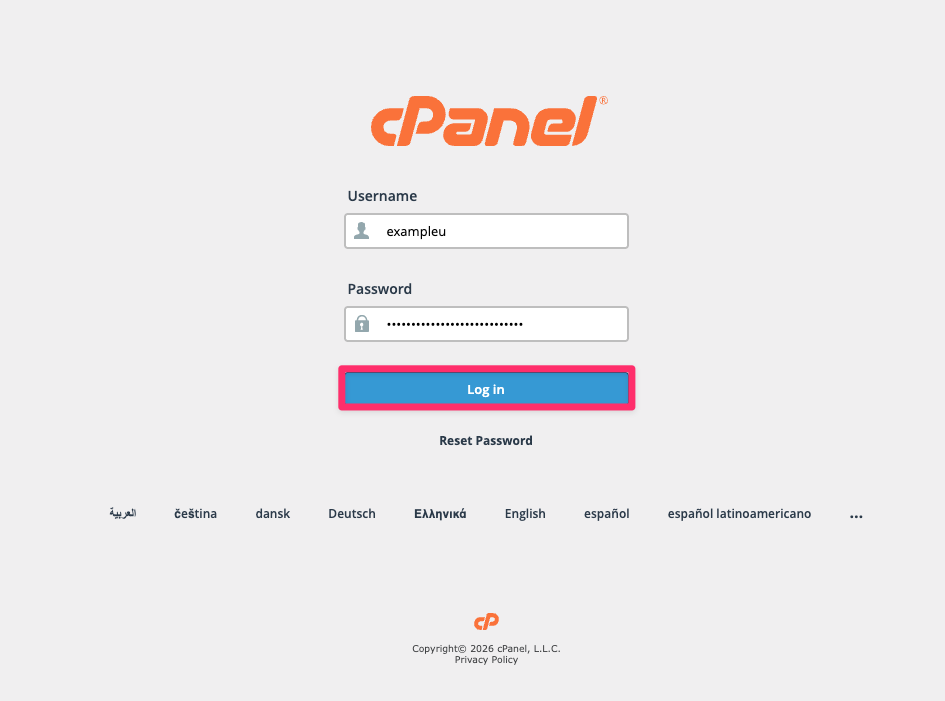

We Are Here to Help You
Get in touch with one of our local experts at any time.