


Support Centre
Find the answers to your questions and get the support you need with the VentraIP help centre.
Browse by Popular
Domain Name
- What is a domain name?Eligibility criteria for registering .AU domain namesPremium domain names explained

Web Hosting
View All
Email Hosting
- Outlook 365 (Classic) Email Setup GuideMail app setup for iOS (iPhone + iPad)Gmail (webmail) email setup

Google Workspace
- Getting Started with Google WorkspaceGoogle Workspace support resourcesTransferring an existing Google Workspace service to VentraIP
Account
- How do I reset my VIPcontrol password?How do I create a VentraIP account?How can I see who accessed my VentraIP account?

Troubleshooting
- How do I clear my browser cache?Troubleshooting a ‘500 internal server' errorTroubleshooting with a ping test
Updating Your Website’s Basic SEO Information
Updating the website name
- Navigate to the Website Editor
- Click on ‘Settings’ on the left.
- From there, you can enter a name for your website under Website Name
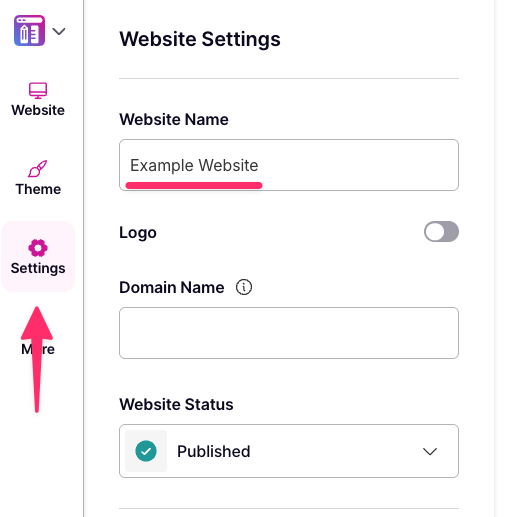
- Click Done.
Updating your logo
- Navigate to the Website Editor
- Click on ‘Settings’ on the left.
- Click on the toggle next to Logo
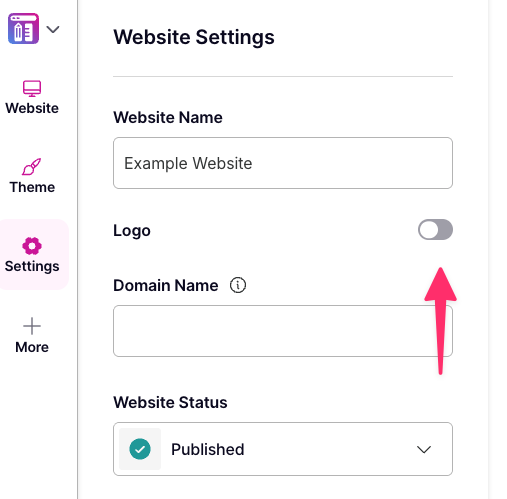
- From there, you can upload your logo, Choose from an existing image, or use text in place of a logo.
To optimise your logo for your website, you can refer to our guide here
- Once chosen, click ‘Save’ at the top.
Updating SEO information
You can adjust how your website presents itself in search engine results by updating the title, description, and logo of your website. To do this:
- Navigate to the Website Editor
- Click on ‘Settings’ on the left.
- Click SEO
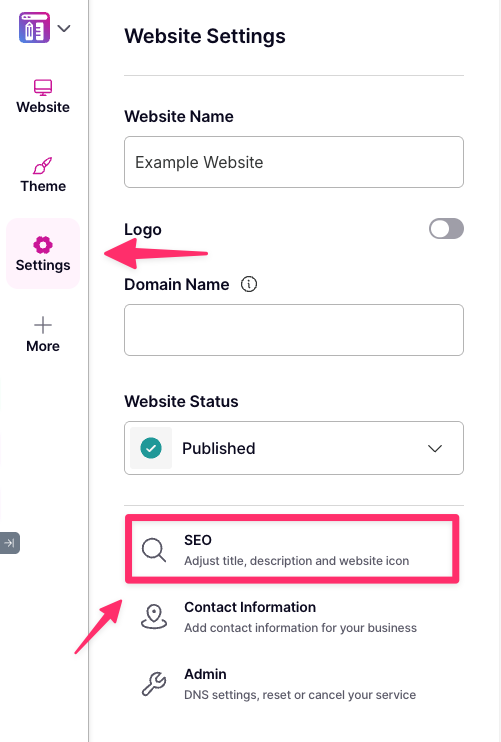
- From there you can adjust:
- Website title: This will adjust the title of your website which appears on search results.
- Website description: The description of your website that will appear on search results. We recommend anywhere between 50 – 160 characters long.
- Website icon: You can upload an icon or favicon to appear in bookmarks or browser tabs.
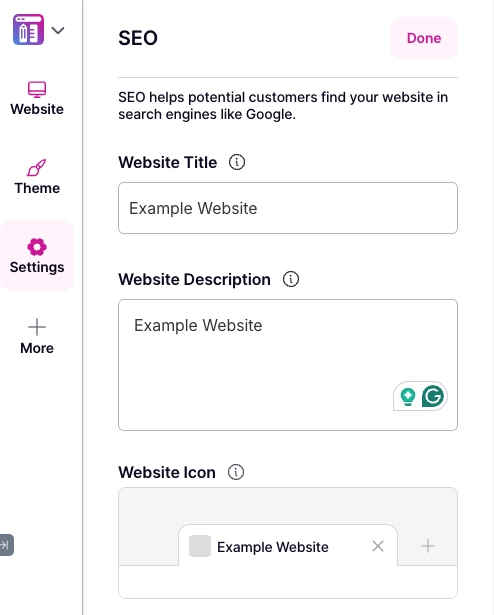
- Once you’re finished, click ‘Done’!

We Are Here to Help You
Get in touch with one of our local experts at any time.