
Browse by Popular

Domain Name
- What is a domain name?Eligibility criteria for registering .AU domain namesPremium domain names explained

Web Hosting
View All
Email Hosting
- Outlook 365 (Classic) Email Setup GuideMail app setup for iOS (iPhone + iPad)Gmail (webmail) email setup

Google Workspace
- Getting Started with Google WorkspaceGoogle Workspace support resourcesTransferring an existing Google Workspace service to VentraIP
Account
- How do I reset my VIPcontrol password?How do I create a VentraIP account?How can I see who accessed my VentraIP account?

Troubleshooting
- How do I clear my browser cache?Troubleshooting a ‘500 internal server' errorTroubleshooting with a ping test
How to Filter Emails within cPanel
If you would like to automatically filter some emails to folders, or if the spam filter isn’t quite working to the degree that you like, you’re able to set up custom filters to move emails where you want them.
Global filters
To set up filters that apply for any email account under your cPanel hosting, follow these steps:
- Log in to cPanel
- Click ‘Global Email Filters’. Then click ‘Create a New Filter’
- You’ll be greeted with the following options:
- Filter Name: Enter a name for your filter.
- Rules: Configure your rule as you like.
- Actions: What you want the rule to do.
- Once the rule is configured, click ‘Create’
Per-email filters
To configure a filter for a singular email account, follow these steps:
- Log in to cPanel
- Click ‘Email Filters’
- Click ‘Manage Filters’ next to the email account you would like to configure the filter for.
- Click ‘Create a New Filter’.
The options will be the same as the Global Email Filters.
Filter options
The first set of options determines which part of the email cPanel will use to filter. You can choose from the following options:
- From: The message sender’s address.
- Subject: The message’s subject line.
- To: The address to which the sender sent the message (excluding BCC).
- Reply Address: The address which the sender receives replies.
- Body: The emails content.
- Any Header: Any header refers to any part of the header in the email (To, from, envelope-to, content-type.)
- Any Recipient: Any recipient of the message.
- Has Not Been Previously Delivered: Applies only to messages that remain in the queue for delivery.
- Is an Error Message: If the email is an error message (such as an auto-response system).
- List ID: The account’s mailing lists.
- Spam Status: Whether the email was marked as spam (either a yes or no).
- Spam Bar: The content of the Spam Bar header that the spam filtering generated (represented as a +).
- Spam Score: The total number of plus signs (+) in the Spam Bar value, expressed as an number.
Operators & criteria
After you select the criteria of which you want to filter, you can then choose the type of match you would like and what to match. Below are a list of operators with some examples that you might commonly use.
- Equals: The text exactly matches a string.
Example: Discarding emails from a specific sender
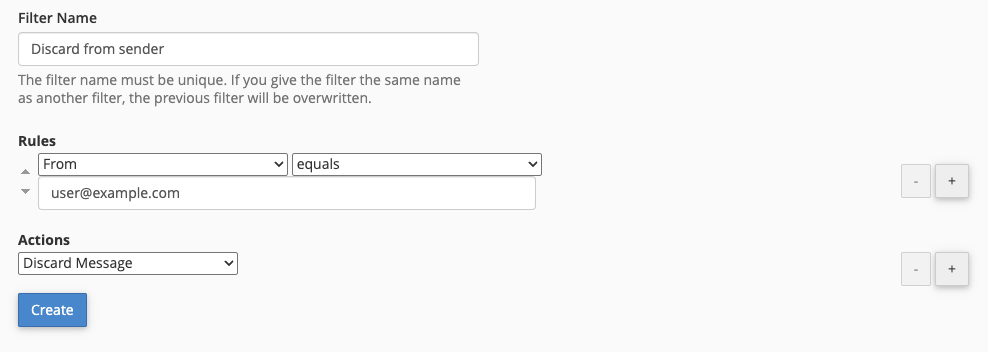
This rule will discard any emails that come from
user@example.com- Matches regex: Text matches a regex string/expression.
Example: Discarding emails that matches a regex expression
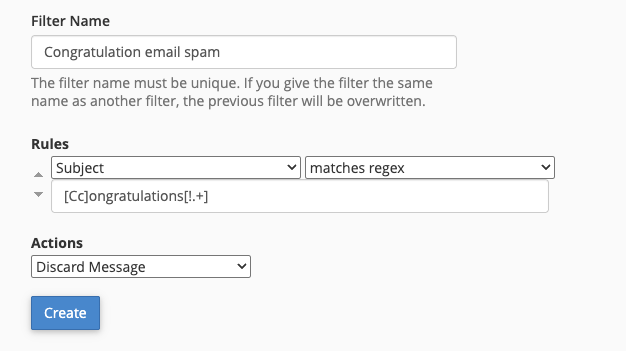
This rule will look for the following matches (among others)in the subject line using the regex expression
[Cc]ongratulations[!.+]and discard the email.- Congratulations!
- congratulations!
- Congratulations!!!!!
- congratulations!!!!!!!!!!
- Contains: Text contains a string that you define.
Example: Discard emails which the body contains SEO
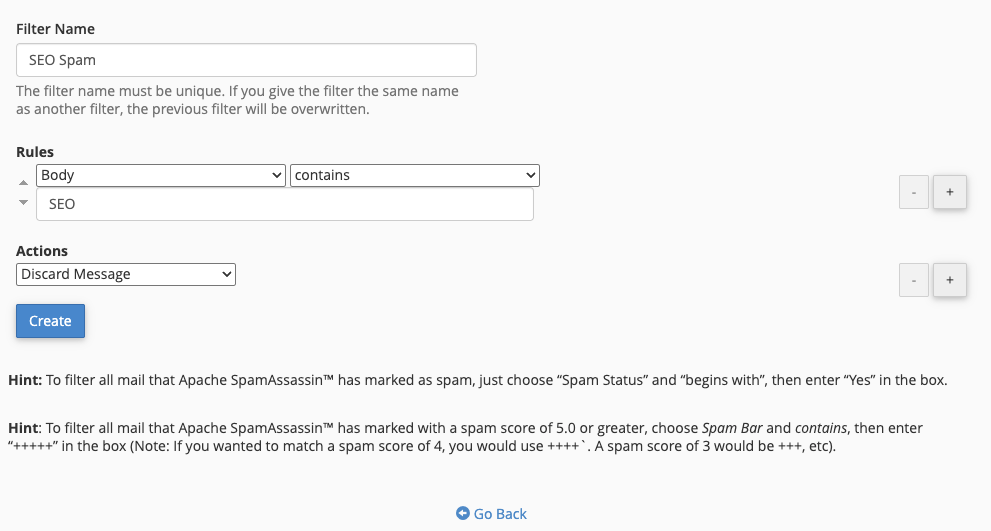
This rule matches these example sentences in an email’s body text (among others):
- Improve your site’s SEO.
- Our SEO specialists are affordable.
- Your site has an SEO problem.
- Save on these end of year closeout deals.
Additionally, This will look for any partial matches that contains the word or string, including within longer words.
- Does not contain: The text does not contain the string.
Example: Redirect non-sale emails to user@example.com
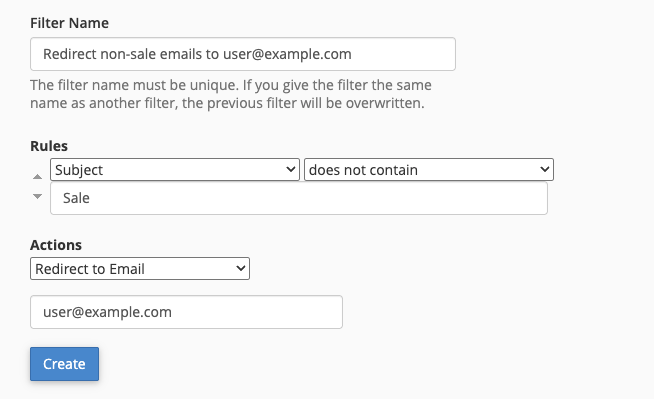
This filter looks at the subject line, and if any emails do not match the word “sale” it will redirect all emails to
user@example.com.- Begins with: The text begins with the defined string.
Example: Sorting emails to a specific folder
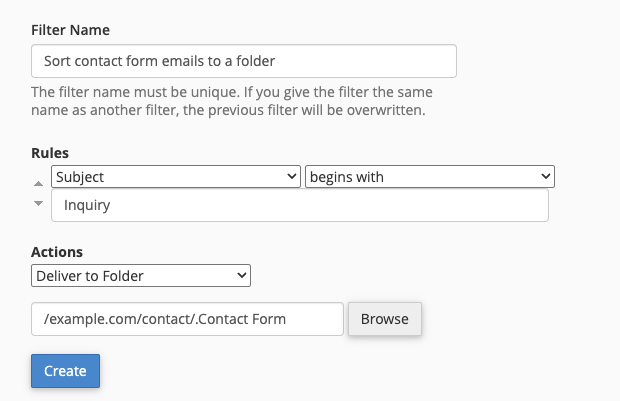
This example rule will match any emails which the subject line starts with “Inquiry” and deliver them to the folder “Contact Form”.
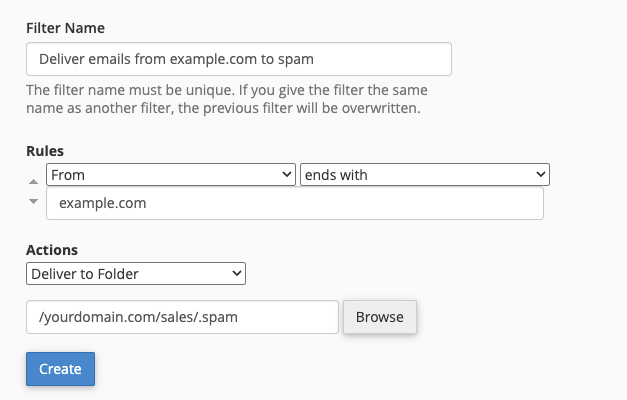
- Ends with: The text ends with the defined string.
Example: Deliver any email from the domain example.com to spam
- Does not begin: The text does not begin with the defined string.
Example: Sending a bounceback message for test emails
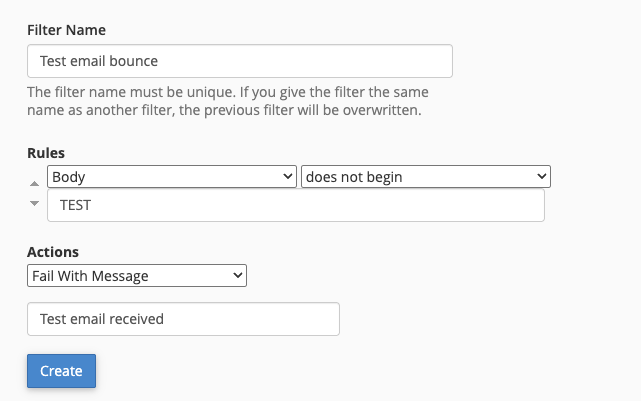
This rule matches emails that do not begin the body text with TEST and sends a bounceback email with a custom message.
- Does not end with: The text does not end with the defined string.
Example: Filter out of office emails
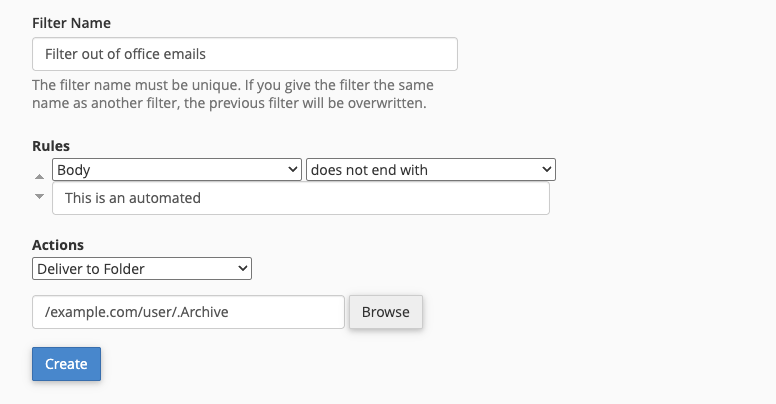
This rule matches emails that do not end with the sentence “This is an automated message”, please do not reply. and delivers it to a folder
- Does not match: The text does not exactly match the defined string.
Example: Redirect any emails that don’t exactly match sale
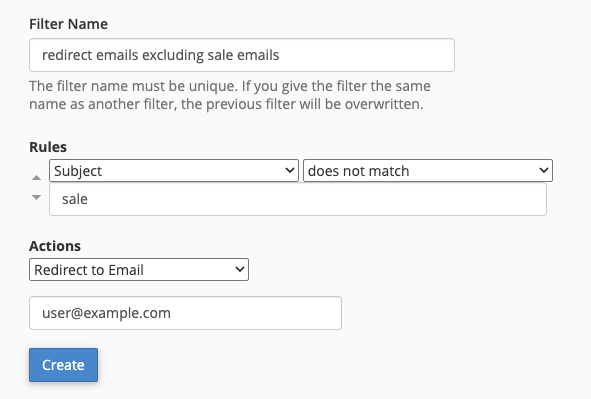
This rule matches emails with any subject line except sale.
Multiple rules/actions
If you would like more advanced filtering you can add multiple rules and actions for a filter. This is done by clicking the plus (+) symbol to the right of a rule and selecting and/or from the dropdown menu depending on what you want it to do.
For example, this rule below checks an email from
user@example.comfor the text “Contact form” and delivers it to the folder “Contact Form”.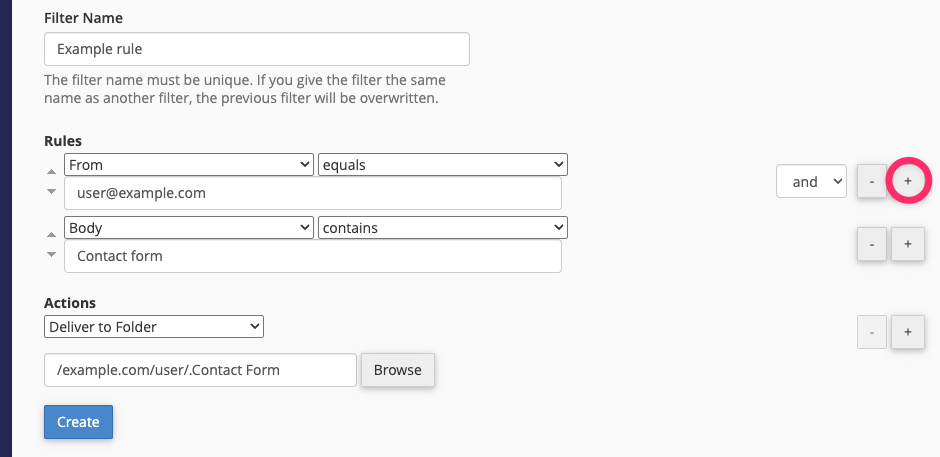
Actions
Once you have configured your filters criteria, you can then configure what it does to the email. Below is a list of actions you can configure:
- Discard Message: Discards the email and does not provide any failure notice.
- Redirect to Email: cPanel will redirect the email to another email account you specify
Note: This does not retain a copy of the message in the original mailbox. If you would like to retain a copy, add a deliver to folder action and set it to the INBOX folder.
- Fail with Message: cPanel discards the email and sends an automatic reply with a message you specify.
- Stop Processing Rules: cPanel stops performing further actions or applying any remaining filters on this message.
- Deliver to Folder: cPanel will deliver the email to a folder you specify.
- Pipe to a Program: cPanel sends the incoming message to a specified program.

We Are Here to Help You
Get in touch with one of our local experts at any time. - Matches regex: Text matches a regex string/expression.