
Support Centre
Find the answers to your questions and get the support you need with the VentraIP help centre.
Browse by Popular

Domain Name
- What is a domain name?Eligibility criteria for registering .AU domain namesPremium domain names explained

Web Hosting
View All
Email Hosting
- Outlook 365 (Classic) Email Setup GuideMail app setup for iOS (iPhone + iPad)Gmail (webmail) email setup

Google Workspace
- Getting Started with Google WorkspaceGoogle Workspace support resourcesTransferring an existing Google Workspace service to VentraIP
Account
- How do I reset my VIPcontrol password?How do I create a VentraIP account?How can I see who accessed my VentraIP account?

Troubleshooting
- How do I clear my browser cache?Troubleshooting a ‘500 internal server' errorTroubleshooting with a ping test
Outlook for Android Email Setup Guide
This guide explains how to set up your email in Outlook on Android. These instructions apply to both cPanel and Dedicated Email Hosting accounts. For Server/Hostname fields:
- If you use VentraIP Dedicated Email hosting, enter:
ventraip.email - If you use VentraIP cPanel Hosting, enter:
mail.yourdomain.com(replaceyourdomain.comwith your domain)
Unsure which to use? Check our guide What is my email server?
- Open Outlook
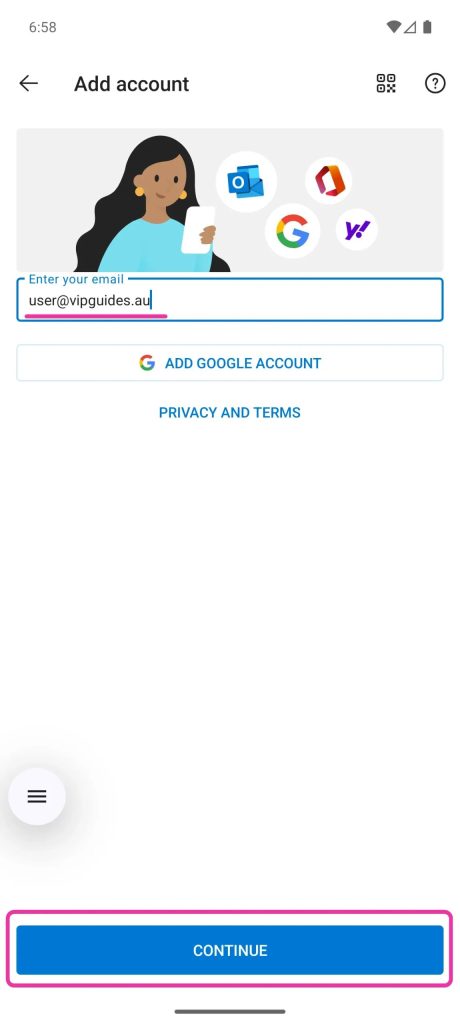
If you have already added an account to Outlook, find the ‘Add Email Account’ option in the Sidebar or Settings on the left, otherwise proceed. - Enter your Email Address and click ‘Continue’.
- Then click ‘IMAP’ under ‘Advanced’ for the account type.
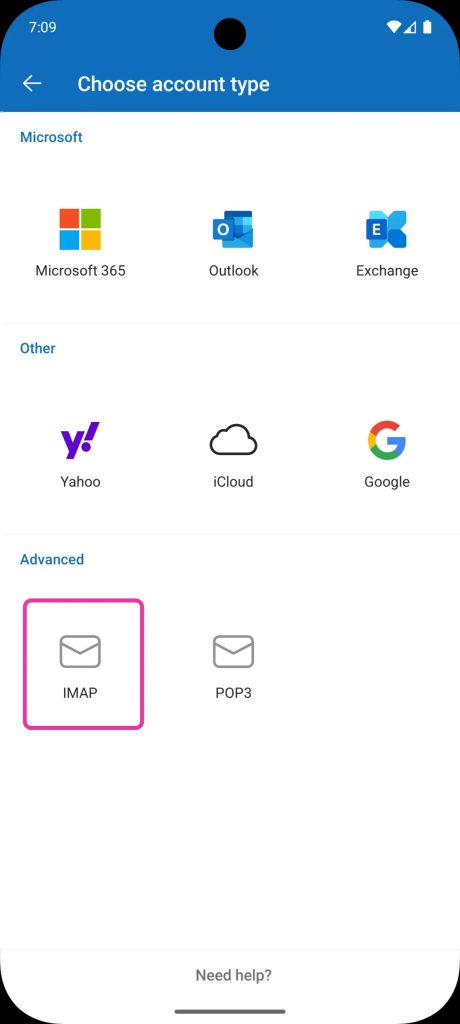
- Then click ‘IMAP’ under ‘Advanced’ for the account type.
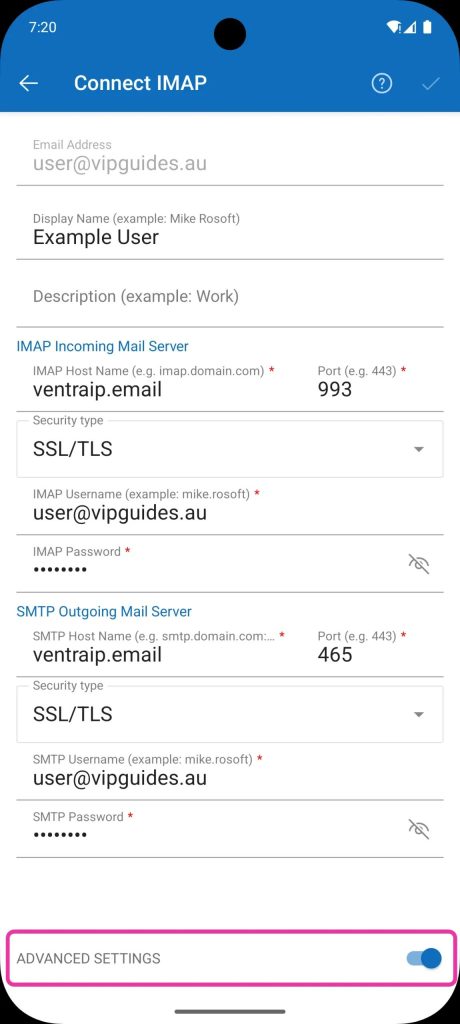
- Enter IMAP Incoming Email Server settings
Ensure ‘Advanced Settings’ is ticked- Email Address: Enter your email (e.g.,
user@vipguides.au). - Display Name: Enter the name you wish for your emails to appear from.
- Description: *Optional, this is purely for organisation within Outlook.
- IMAP Hostname:
Dedicated Email Hosting:ventraip.email
cPanel Email Hosting:mail.yourdomain.com(replace with your actual domain) - IMAP Username: Enter your email (e.g.,
user@vipguides.au). - IMAP Password:Enter your email password (Forgotten password? Click here to reset)
- IMAP Port: 993
- Port Security: SSL/TLS
- Email Address: Enter your email (e.g.,
- Enter SMTP Outgoing Email Server settings
- Ensure ‘Use Advanced Settings’ is ticked
- SMTP Hostname:
Dedicated Email Hosting:ventraip.email
cPanel Email Hosting:mail.yourdomain.com(replace with your actual domain) - SMTP Port: 465
- Port Security: SSL/TLS
- SMTP Username: Enter your email (e.g.,
user@vipguides.au). - IMAP Password:Enter your email password (Forgotten password? Click here to reset)
- Click the ‘tick’ on the top right of the screen and follow Any final personalisation or setup prompts.
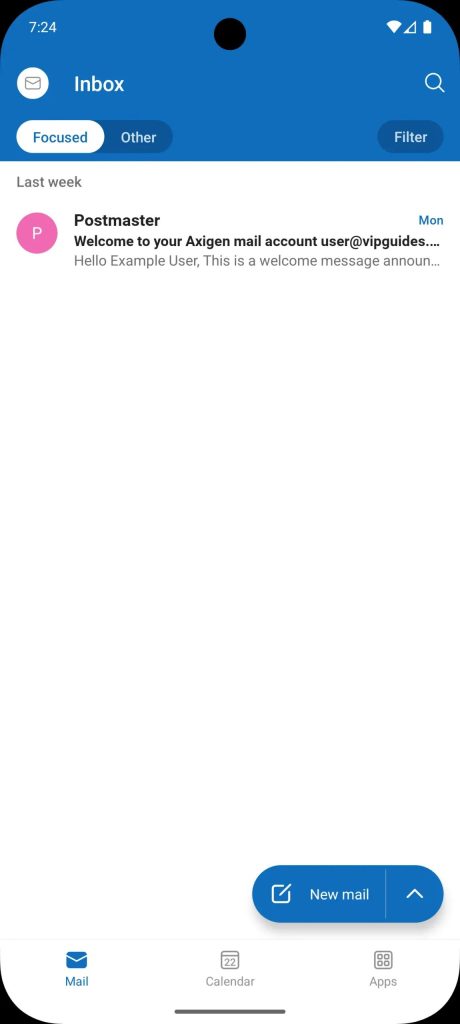 Done!
Done!
If you are running into any issues, take a look at our guide on Troubleshooting Email Client Problems
Still having issues getting set up?
While our support for third-party email software is limited, we’re happy to help where possible!
If you encounter any errors during configuration, please submit an eTicket with screenshots of both any error messages and your configuration settings so we can assist you.
For advanced troubleshooting needs, please consult a local IT technician or contact the software vendor directly.

We Are Here to Help You
Get in touch with one of our local experts at any time.