
Support Centre
Find the answers to your questions and get the support you need with the VentraIP help centre.
Browse by Popular

Domain Name
- What is a domain name?Eligibility criteria for registering .AU domain namesPremium domain names explained

Web Hosting
View All
Email Hosting
- Outlook 365 (Classic) Email Setup GuideMail app setup for iOS (iPhone + iPad)Gmail (webmail) email setup

Google Workspace
- Getting Started with Google WorkspaceGoogle Workspace support resourcesTransferring an existing Google Workspace service to VentraIP

Account
- How do I reset my VIPcontrol password?How do I create a VentraIP account?How can I see who accessed my VentraIP account?

Troubleshooting
- How do I clear my browser cache?Troubleshooting a ‘500 internal server' errorTroubleshooting with a ping test
Removing Duplicate Emails in Outlook
- Open Classic Outlook.
- Click on the folder that you would like to remove the duplicates for.
- From the Home tab at the top, click the dropdown arrownext to the Trash bin.
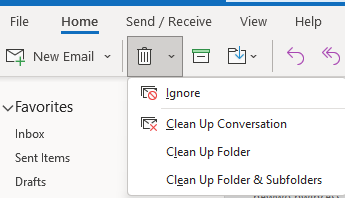
- Choose one of the following:
- Clean Up Conversation: Removes duplicates within a conversation.
- Clean Up Folder: Deletes duplicates within the entire folder.
- Clean Up Folder & Subfolders: Removes duplicates in the folder and its subfolders.
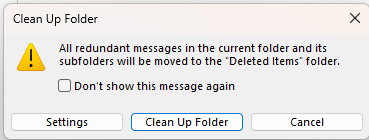
- Once selected, a pop up box will appear. You can confirm your clean up settings by clicking the ‘Settings’ button. From there, scroll down to Conversation clean up and customise it to your liking.
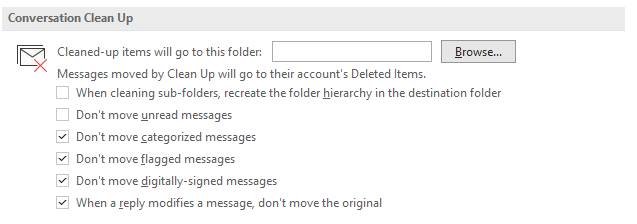
- After confirming the clean up settings, click ‘Clean up Folder’.

We Are Here to Help You
Get in touch with one of our local experts at any time.