
Support Centre
Find the answers to your questions and get the support you need with the VentraIP help centre.
Browse by Popular

Domain Name
- What is a domain name?Eligibility criteria for registering .AU domain namesPremium domain names explained

Web Hosting
View All
Email Hosting
- Outlook 365 (Classic) Email Setup GuideMail app setup for iOS (iPhone + iPad)Gmail (webmail) email setup

Google Workspace
- Getting Started with Google WorkspaceGoogle Workspace support resourcesTransferring an existing Google Workspace service to VentraIP

Account
- How do I reset my VIPcontrol password?How do I create a VentraIP account?How can I see who accessed my VentraIP account?

Troubleshooting
- How do I clear my browser cache?Troubleshooting a ‘500 internal server' errorTroubleshooting with a ping test
Synchronizing folders to the IMAP server using Outlook 2013-2019
Please Note: While we do provide email setup support articles in our FAQ, our Technical Support team are unable to provide support for third party email software. We recommend contacting the software vendor for troubleshooting issues with these applications.
If you’d like to choose which folders you want to appear/sync in your email software, you can follow these steps:
- Open Outlook
- Right click on the top folder under your email accounts
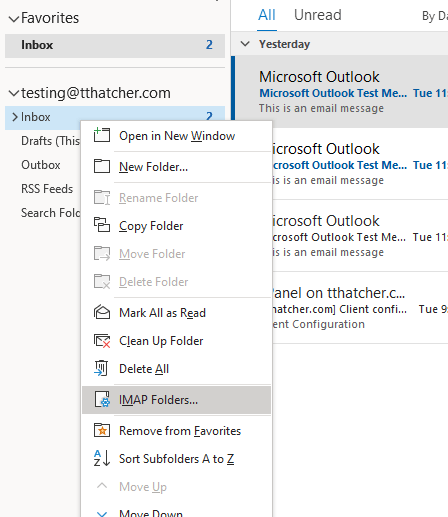
- Click IMAP Folders
- In the dialog box that appears click Query. This will make all of the folders you can subscribe to appear
- Select a folder, and click Subscribe to make it appear in your email software, or Unsubscribe to make it disappear
- Once you’re done, click Apply and then click OK

We Are Here to Help You
Get in touch with one of our local experts at any time.