
Browse by Popular

Domain Name
- What is a domain name?Eligibility criteria for registering .AU domain namesPremium domain names explained

Web Hosting
View All
Email Hosting
- Outlook 365 (Classic) Email Setup GuideMail app setup for iOS (iPhone + iPad)Gmail (webmail) email setup

Google Workspace
- Getting Started with Google WorkspaceGoogle Workspace support resourcesTransferring an existing Google Workspace service to VentraIP

Account
- How do I reset my VIPcontrol password?How do I create a VentraIP account?How can I see who accessed my VentraIP account?

Troubleshooting
- How do I clear my browser cache?Troubleshooting a ‘500 internal server' errorTroubleshooting with a ping test
Adding a DMARC Record
What is DMARC?
DMARC stands for “Domain-based Message Authentication, Reporting & Conformance”. It tells an email server what to do, after checking the validity of a domain name’s SPF and DKIM records.
Adding a DMARC record via cPanel
DMARC record are setup as TXT records, heres how:
- Log in to cPanel.
- Click on the ‘Zone Editor’ option.
- Click ‘Manage’ next to the domain name you would like to add the record for.
- Click the drop-down arrow next to the blue ‘Add Record’ button, select Add “DMARC” Record.
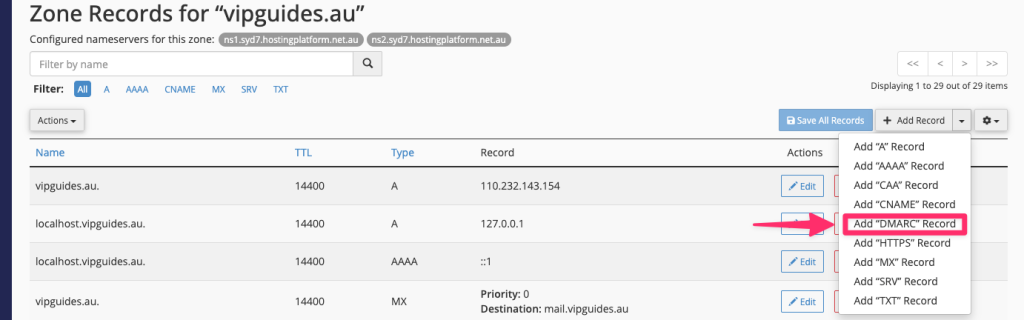
- Select a policy type to generate a record for.
- If you already have chosen a DMARC record, click the Raw tab to enter your custom record.
- You may click Optional Parameters to further specify how your policy works. If you’re unsure how to use these, you can simply leave them at their default values.
- Input the DMARC record into the Record/Text field.
- Click Add Record.
- Allow for 2-8 hours to pass, while the change propagates.
Adding a DMARC record via DNS hosting
- Log in to VIPcontrol.
- Navigate to ‘My Services’ → ‘Domains’ and click on ‘DNS’ next to the domain.
- Under Record type, change this to TXT
- Under Hostname, enter
_dmarc - Paste in your DMARC record under the Value box and click on the plus button to add the record.
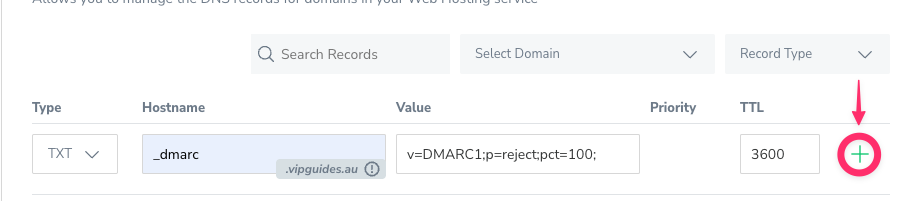
- Allow for 2-8 hours to pass, while the change propagates.
Creating a DMARC record
To create a DMARC record, if you don’t have a cPanel hosting service there’s some fantastic tools like DMARCIAN that can help you easily create a DMARC record, as its super customisable, you can make it as simple or as complex as you like.
If you’re stuck, we’ll go through some common examples and the options you can use to craft a specific record below.
DMARC Examples
v=DMARC1; p=none
This is a basic DMARC record. This doesn’t apply any sort of rules and satisfies most mail providers requirements to have a DMARC record. What this does:
- v=DMARC1: This is the protocol version
- p=none: Policy applied to emails that fails the DMARC check, “none” means no change and is usually used for collecting reports without disrupting mail flow.
v=DMARC1; p=quarantine; sp=quarantine; pct=100;
This record tells mail providers to quarantine any email that fails a DMARC checks on the domain and any subdomains. An explanation of the record:
- v=DMARC1: This is the protocol version
- p=quarantine: Policy applied to emails that fails the DMARC check, quarantine tells mail providers that the email is suspicious, usually this lands in the spam box.
- sp=quarantine: Subdomain policy, much like above, this treats any email from a subdomain that fails the DMARC check as suspicious.
- pct=100 Tells receivers to apply the DMARC policy for emails that fail DMARC checks 100% of the time.
v=DMARC1; p=reject; sp=reject; adkim=s; aspf=s; pct=100; fo=1; rua=mailto:user@example.com; ruf=mailto:user@example.com
This record tells receivers to outright reject any email that fails any DMARC check, and sends reports and feedback to the email account “user@example.com”. What this does:
- v=DMARC1: This is the protocol version
- p=reject: Policy applied to emails that fails the DMARC check, reject tells receivers to not deliver any emails that fail DMARC checks.
- sp=reject: Subdomain policy, much like above, reject tells receivers to not deliver any emails that fail DMARC checks from subdomains.
- adkim=s: Specifies “Alignment Mode” for DKIM signatures. “Strict Mode” here requires exact matching between the DKIM d= domain and an email’s “header-From:” domain.
- aspf=s: Similar to above, this specifies “Alignment Mode” for SPF record instead. “Strict Mode” requires exact matching between the SPF domain and an email’s “header-From:” domain.
- pct=100: Tells receivers to apply the DMARC policy for emails that fail DMARC checks 100% of the time.
- fo=1: Forensic reporting options, the “1” generates reports if any mechanisms fail.
- rua=: List of URIs or email addresses for receivers to send aggregate feedback reports to, in this example it will be sent to “user@example.com”
- ruf=: List of URIs or email addresses for receivers to send Forensic reports to.
DMARC options
Below is a table of all possible options to configure a DMARC record.
| Tag | Options | Default | Explanation |
|---|---|---|---|
| v | DMARC1 | DMARC1 | A DMARC record should always contain “v=DMARC1”. A wrong, or absent DMARC version tag causes the entire record to be ignored. |
| p | none,quarantine,reject | none | Policy applied to emails that fails the DMARC check. “none” is used to collect feedback and gain visibility into email streams without impacting existing flows. “quarantine” allows Mail Receivers to treat email that fails the DMARC check as suspicious. Most of the time, they will end up in your spam folder. “reject” outright rejects all emails that fail the DMARC check. |
| adkim | r,s | r | Specifies the “Alignment Mode” for DKIM signatures. “r”, or “Relaxed Mode”, allows Authenticated DKIM d= domains that share a common Organisational Domain with an email’s “header-From:” domain to pass the DMARC check. “s”, or “Strict Mode” requires exact matching between the DKIM d= domain and an email;s “header-From:” domain. |
| aspf | s,r | r | Specifies the “Alignment Mode” for SPF. “r”, or “Relaxed Mode” allows SPF Authenticated domains that share a common Organisational Domain with an email’s “header-From:” domain to pass the DMARC check. “s”, or “Strict Mode” requires exact matching between the SPF domain and an email’s “header-From:” domain. |
| sp | none,quarantine,reject | Inherits the “p” tag value | Policy to apply to email from a sub-domain of this DMARC record that fails the DMARC check. This tag allows you to explicitly publish a “wildcard” sub-domain policy. |
| fo | 0,1,d,s | 0 | Forensic reporting options. “0” generates reports if all underlying authentication mechanisms fail to produce a DMARC pass result, “1” generates reports if any mechanisms fail, “d” generates reports if DKIM signature failed to verify, “s” generates reports if SPF failed.
You can combine reporting options by seperating each option by a colon (e.g, |
| rua | mailto: | none |
General aggregate report type that provides an overview of a domain’s email traffic. This is sent to an email you specify after the “mailto:” prefix, Multiple email addresses can be separated by a comma. Info contained within the report is:
|
| ruf | mailto: | none | Forensic reports, this contains information about emails that fail SPF and DKIM checks such as the header, subject, URLs and attachments. Similar to above, this is sent to an email you specify after the “mailto:” prefix, Multiple email addresses can be separated by a comma. |
| rf | afrf,iodef | afrf | The reporting format for individual Forensic reports. |
| pct | Numeric value (1-100) | 100 | The percentage tag tells receivers to only apply policy against email that fails the DMARC check x amount of the time. For example, “pct=60” tells receivers to apply the “p=” policy 60% of the time against email that fails the DMARC check. The policy must be “quarantine” or “reject” for the percentage tag to be applied. |
| ri | Numeric value in seconds | 86400 | The reporting interval in seconds for how often you’d like to receive aggregate XML reports. You’ll most likely receive reports once a day (86400) regardless of this setting. |